

Anatomy
Learn about the individual parts of Telecom customer 360.
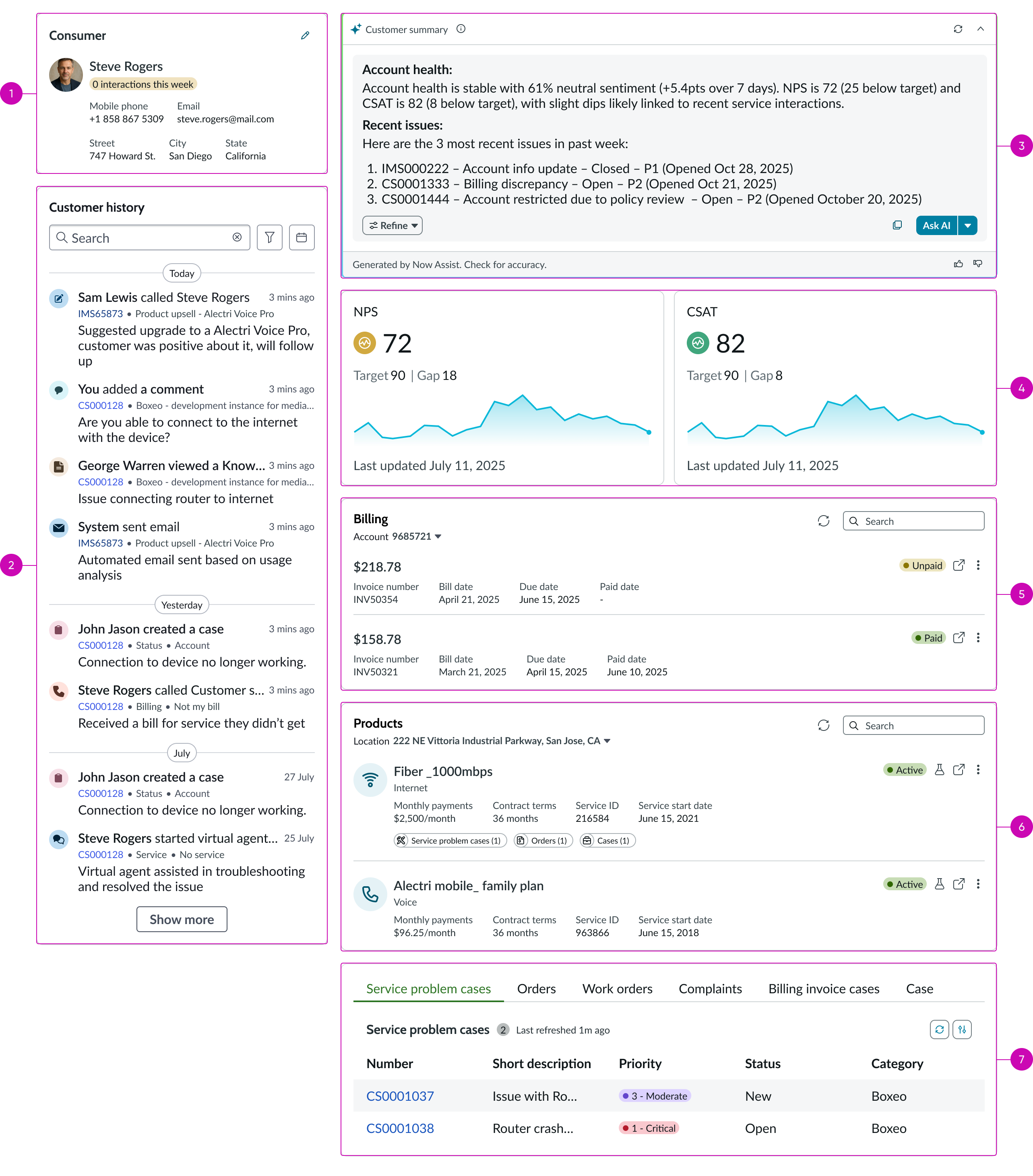
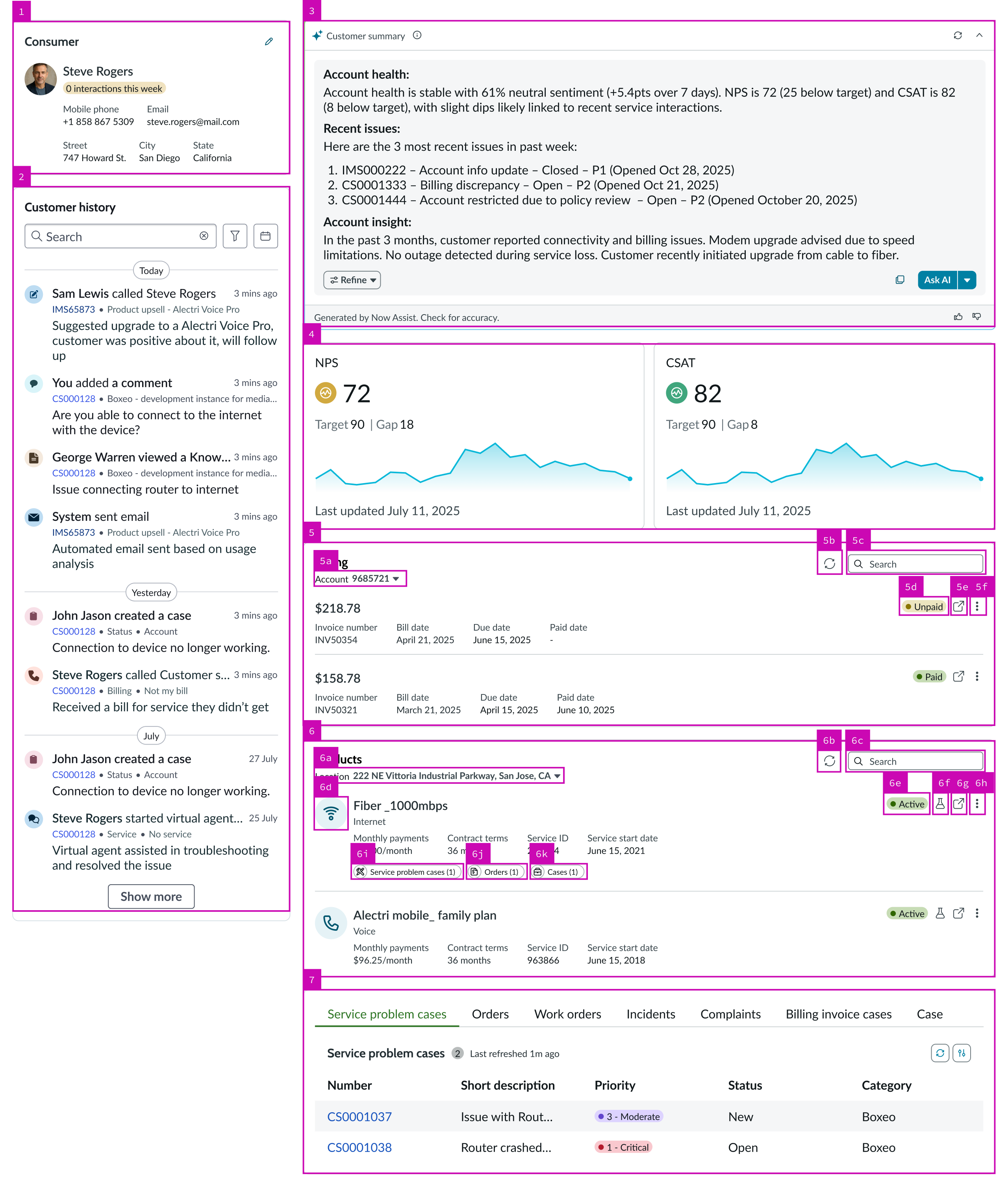
- Contact card: Details of the consumer or account; see usage guidelines for contact card
- Customer history: Timeline of all activities related to an account or consumer
- Customer summary: AI-generated summary of the account or consumer
- Data visualization: Configurable section displaying 1, 2, or 3 data visualizations
- Billing: List of recent invoices with contextual information, invoice status, and action icons; includes search and filter
- Products: List of products with contextual information, product status, and action icons; includes search and filter
- Related records: List of related records associated with the account or consumer
Billing widget anatomy
Learn about the individual parts of the billing widget.
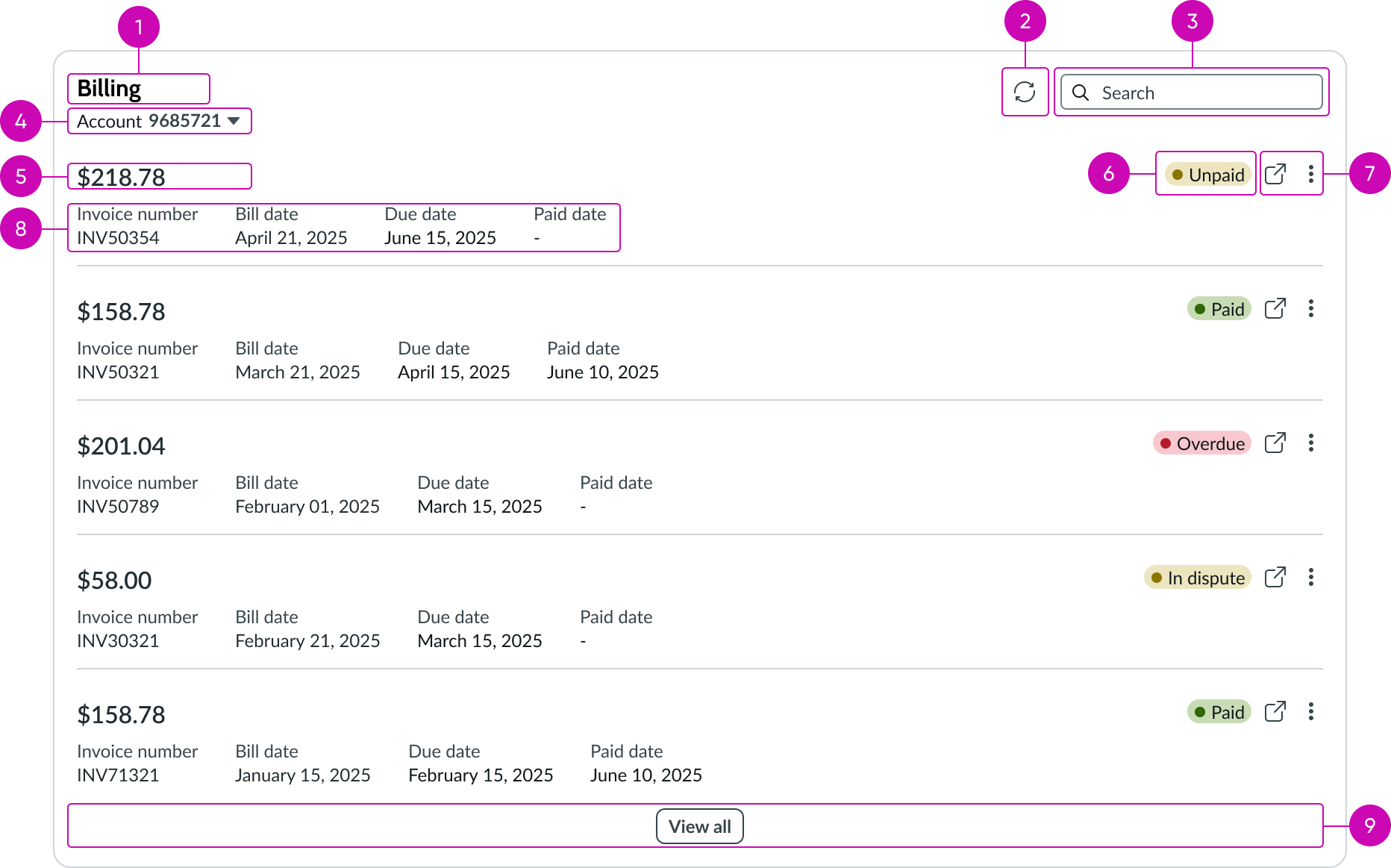
- Title: Title for the billing widget
- Refresh icon: Button that refreshes the invoice list to show the most recent data
- Search: Field for searching a specific invoice number within the selected billing account
- Billing account filter drop-down: Button for selecting the billing account to display the invoices displayed
- Invoice amount: Total amount for the invoice
- Status: Current status of the invoice
- Action icons: Button and menu for opening the invoice details page and accessing additional actions respectively
- Contextual information: Configurable information about the invoice
- Footer button: "View all" button that appears when more than five invoices are associated with the selected billing account; redirects the user to the invoice list page
Learn about the individual parts of the products widget.
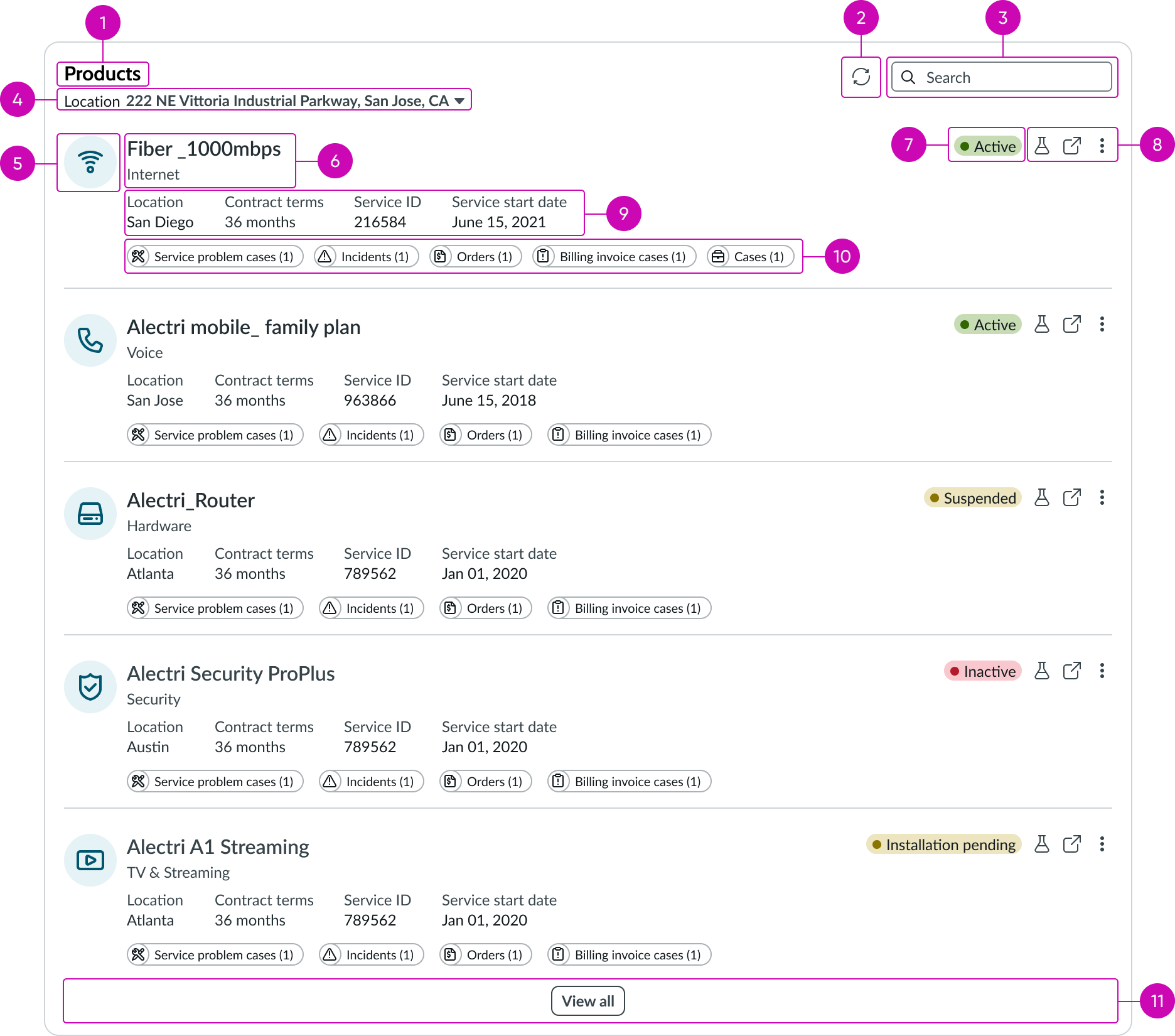
- Title: Title for the products widget
- Refresh icon: Button that refreshes the product list to show the most recent data
- Search: Field for searching a specific product by name or product characteristics within the selected location
- Location filter drop-down: Button for selecting the location to scope the products displayed
- Product icon: Configurable icon representing the product category
- Product: Name and category of the product
- Status: Current status of the product
- Action icons: Buttons and menu for running diagnostics, opening the product details page, and accessing additional actions
- Contextual information: Configurable information about the product
- Related records: Pills indicating open records associated with the product
- Footer button: “View all" button that appears when more than five products are associated with the selected location; redirects the user to the products list page
Subcomponents
See the usage guidelines for AI summary card.
See the usage guidelines for badge.
See the usage guidelines for button.
See the usage guidelines for button bare.
See the usage guidelines for card base header.
See the usage guidelines for contact card.
See the usage guidelines for customer activity.
See the usage guidelines for data visualization.
See the usage guidelines for dropdown.
See the usage guidelines for input.
See the usage guidelines for label value stacked.
See the usage guidelines for list related.
See the usage guidelines for pill.
See the usage guidelines for search.
See the usage guidelines for text link.
See the usage guidelines for tooltip.
Usage
Use telecom customer 360 on workspace record pages where agents need immediate access to the customer's full context while working a case, incident, or interaction. Embedding this component within the record page removes the need to navigate away to gather account details, reducing resolution time and customer frustration. Use the billing widget when agents need to verify payment status, identify outstanding invoices, or locate specific charges during a billing dispute. Use the products widget when agents need to confirm what services a customer is subscribed to, check service status, or identify the product associated with a reported issue.
Note: Do not use telecom customer 360 as a standalone page. It is designed to occupy a panel within a larger workspace record layout, alongside the primary case or interaction details.
AI features
Telecom customer 360 includes two AI-powered features powered by Now Assist. AI features are only available when the Now Assist plugin is active and a valid Now Assist skill configuration is referenced in the card definition.
Customer summary
The customer summary widget generates an AI summary of the account or consumer directly within the panel. The summary surfaces account health, recent issues, and contextual signals to help agents orient quickly at the start of an interaction, without reading through the full customer history. The summary is generated by Now Assist; agents should verify its accuracy before acting on it.
Ask AI
The Ask AI button in the Customer summary widget enables agents to follow up on the generated summary with natural language questions. Agents can ask about specific interactions, billing issues, or service history to get answers grounded in the customer record context.
Configurations
Learn how to customize telecom customer 360 by configuring the available properties.
Customer data
Configure the source table and record to establish the customer context for the component. The table determines which type of customer record the component displays. The record ID identifies the specific record within that table. Both properties are required, the component doesn’t render without them.
Cards
You can control which cards appear in the component by mapping each card slot to a configured card definition. Omitting a card slot from the configuration hides that card entirely. The following cards are available:
- Contact: Displays customer contact details
- Interaction: Displays the customer's interaction history
- Visualization: Renders Performance Analytics charts for the customer context
- Insights: Renders the Now Assist context menu; requires the Now Assist plugin and a valid Now Assist skill configuration to be active at runtime
- Billings: Displays billing account information and associated invoices; requires the billing account plugin
- Products: Displays the customer's product inventory with filtering, search, and related record pills; supports suspend, resume, disconnect, and modify actions on individual products
- Tasks: Displays all tasks associated with the customer record in a tabbed layout
Inherited configurations
The contact card inherits its display fields from the card definition configured for the contact slot. The billings card inherits its invoice list to the billing accounts associated with the configured record. The products card scopes its product list to the locations associated with the configured record. The visualization card renders the Performance Analytics charts defined for the configured table and record. The insights card is only visible at runtime when the Now Assist plugin is active and a valid skill configuration is referenced in the card definition.
Responsive behaviors
Learn how telecom customer 360 responds to changes in a container or display.
Reflow
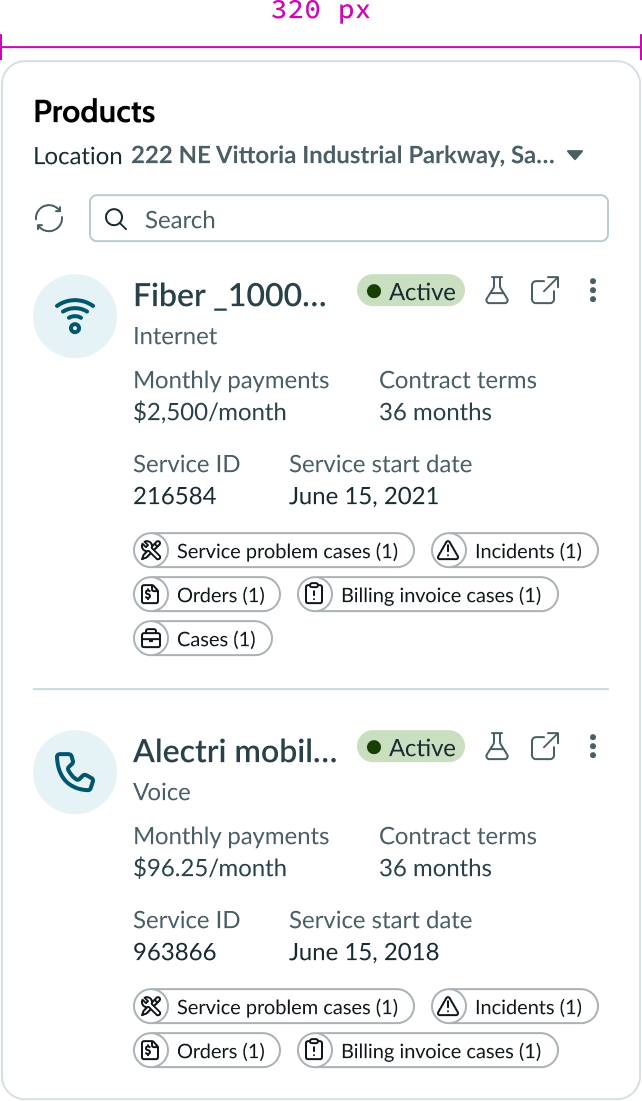
The billing account filter spans the full container width, and the search field appears below it with the refresh icon pinned inline. Invoice list rows maintain a single-line layout; long invoice numbers and account names truncate with an ellipsis at the row boundary. At 400% browser zoom, the widget appears vertically within the customer 360 panel, no horizontal scrolling is required.
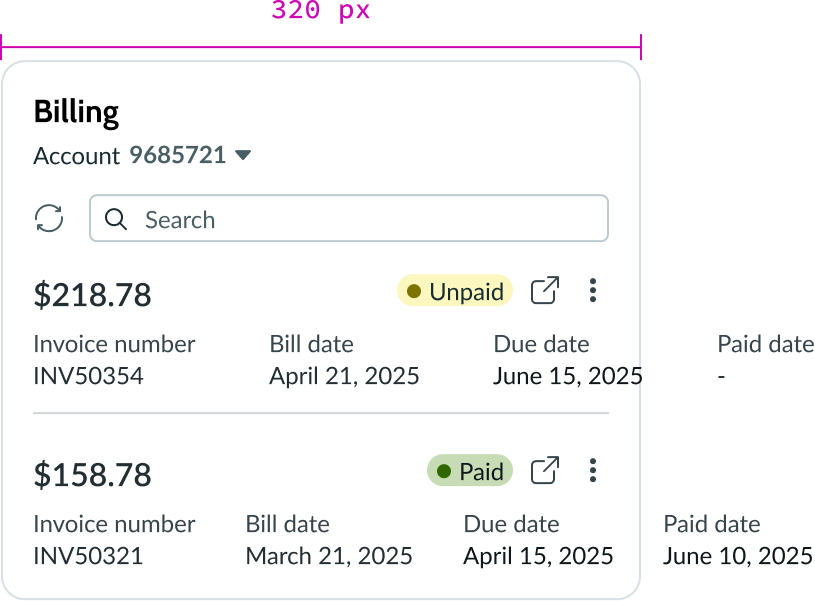
The products widget follows the same reflow pattern: the location filter spans full width, product name rows truncate at the row boundary, and the diagnostic action icon remains tappable in compact view.
Usability
Telecom customer 360 complies with all internationalization and accessibility requirements.
Internationalization
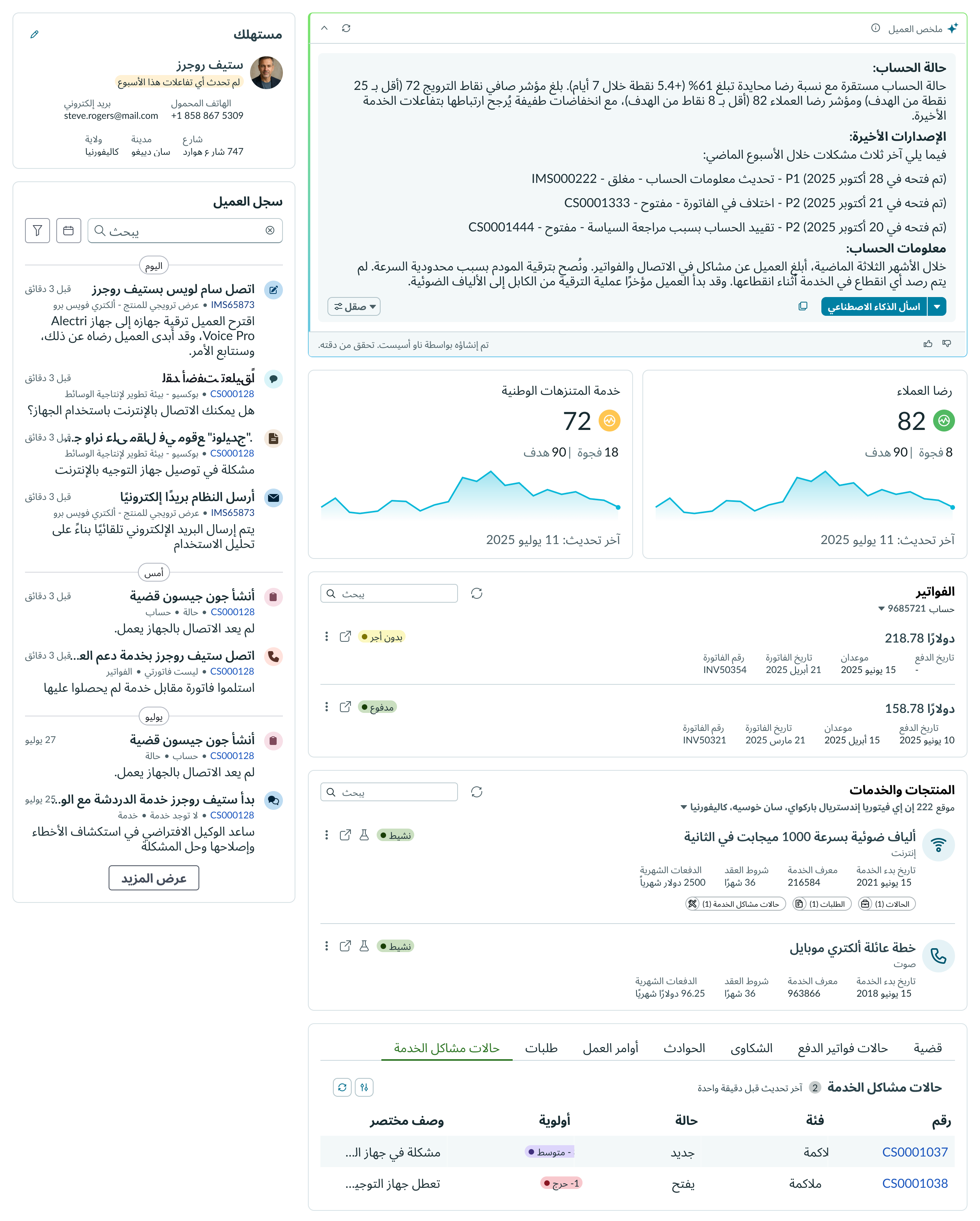
Telecom customer 360 supports right-to-left (RTL) display for Arabic and other RTL languages. All widgets, including the contact card, customer history, customer summary, data visualization, billing, products, and related records, mirror their layout accordingly.
Accessibility
Learn how to access the actionable elements of telecom customer 360 through keyboard interactions and how focus shifts when you use the Tab key.
Keyboard interactions
You can access the actionable elements of telecom customer 360 with these keyboard keys:
- Tab: Navigates through the actionable elements of the component, moving focus sequentially from one interactive element to the next.
- Enter: Takes action on the currently focused item.
- Up/Down arrows: When focus is inside a group of options, the up and down arrow keys navigate through the options in the group.
Telecom customer 360 tab order
This is the high-level tab order for telecom customer 360.
Note: For tab stop information about sub components of telecom customer 360, see the individual component usage guidelines.
Screen readers
Screen readers follow the tab order of the telecom customer 360 component. For left-to-right (LTR) and right-to-left (RTL) languages, the tab order is as follows:
- Contact card
- Customer history
- Customer summary
- Data visualization
- Billing widget
- Products widget
- Related records