

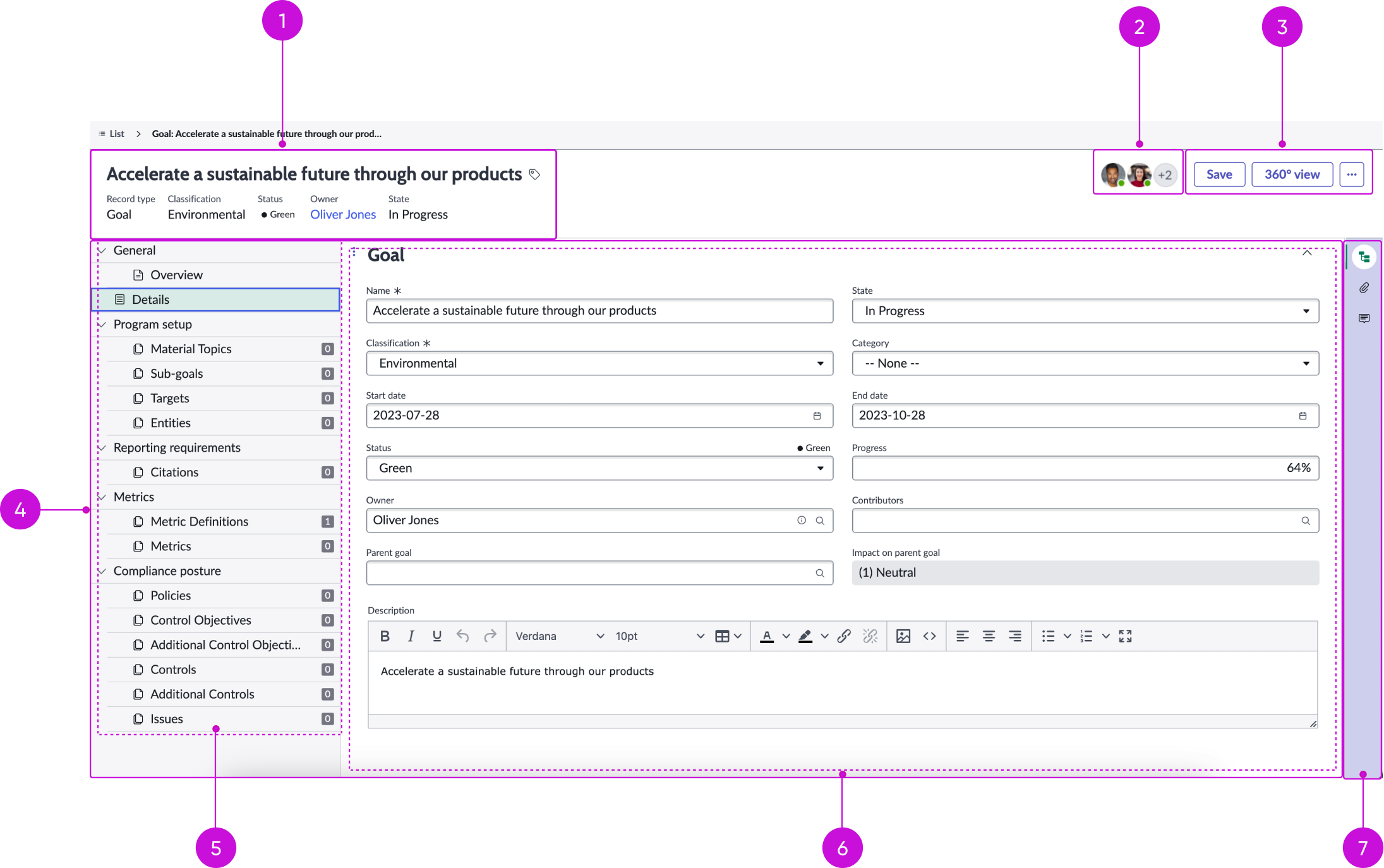
Anatomy
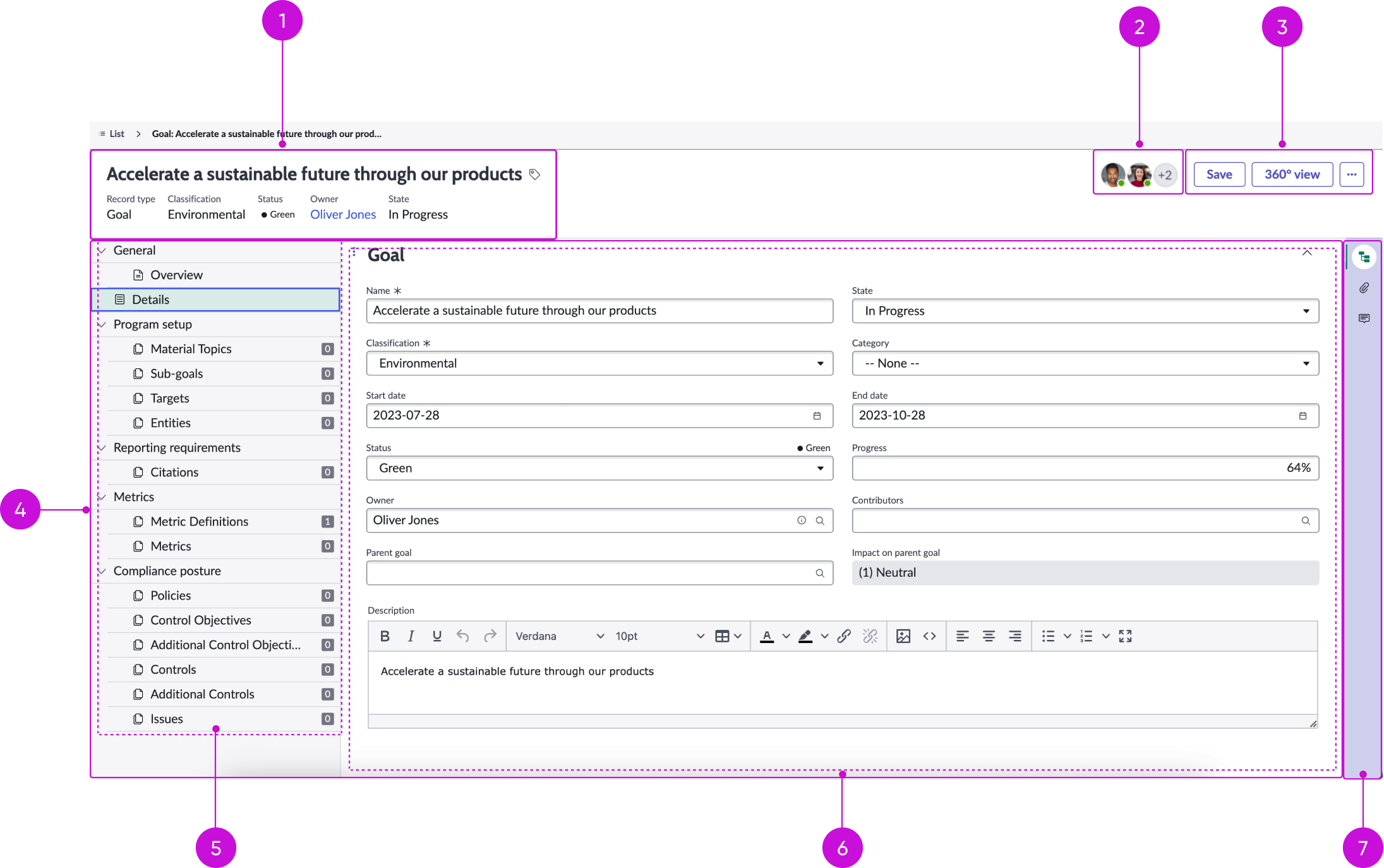
- Header: Contains the record name and description, followed by related information displayed with label-value pairs; the header can also display a subheading and image
- Form record presence icons: Displays avatars for users currently viewing the record: selecting an avatar displays that user’s contact information in a popover
- UI action bar: Contains a row of buttons mapped to UI actions that a user can take when working on a record; an overflow menu contains additional actions
- Resizable pane: Container with two component slots for details section and the contextual sidebar that allows for resizing between the two
- Content tree group: Contains all the navigators for the content displayed in the Conditionally viewed section (form, related list, or viewport)
- Conditional viewed section: Views three types of components
- Form: Overall record details
- Related list: Overall selected related record details
- Viewport: Selected UI Builder page
- Contextual sidebar: Vertical tabs (new in the Tabs component) that display important tools in a separate panel: a user can expand and collapse this panel as needed
Presets and controllers
This component has a preset configuration that sets properties and event handlers, making it ready for use. You can override preset values with a custom configuration if needed. Preset values won’t upgrade with updates. To avoid using presets, configure manually. One preset can apply to a single component instance. See presets for more info.
A preset is linked to a controller, which serves as a data resource. Controllers provide configuration data and event bindings for the component. Selecting a preset adds the required controller to the page, allowing new components to use its preset. For more on controllers, see controllers. For default presets, see view properties and events in the controller API.
Usage
The record page vertical template provides a complete view of a task or case. This view includes an overview of record information, such as contacts, a timeline, and SLA status.
Users can accomplish these tasks using the record page template:
- Get a quick overview of a record, including priority, and manage record tags
- Get detailed record information, view record activity, and post comments
- Communicate directly with requestors using the contact information provided
- Search different sources for similar issues and review recommended solutions
- Perform actions on each record using the controls provided; actions can include saving records, requesting additional information, or creating additional records
Components
The record page vertical template is built with Horizon Design System components that have their own attributes and interactions. Many of these components have preset values that simplify configuration.
Record header
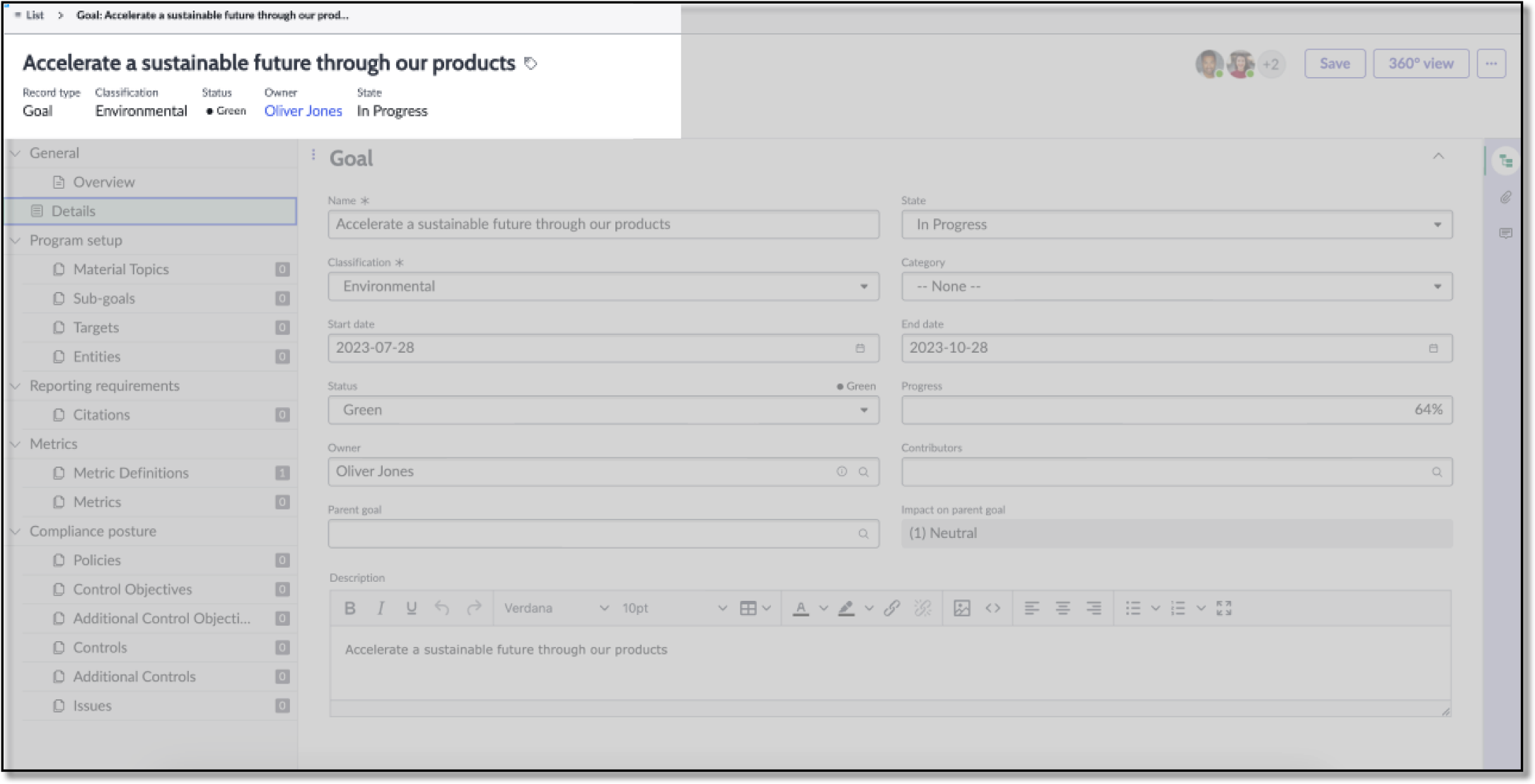
The record header component displays the name of the record, tags, and record details expressed as label-value pairs. This component offers presets. For more information, see the usage guidelines for record header.
Interactions and behaviors
This is how the record header component reacts to user interaction and changes to the container size when used in the record page vertical template.
- Buttons in the header enable users to take action on the current record.
- Selecting the tag icon opens the Edit Tag modal, showing the tags currently associated with the record. In this modal, users can:
- Add and remove tags
- Rename existing tags
- Change tag visibility
Presets
The record header subcomponents have these presets:
- Record header image: Defines the title of a record dynamically from the header image field for the table configured in the form header record.
- Record tags: Enables creating and maintaining additional attributes and information related to a record.
- Record subheading: Defines the title of a record dynamically from the subheading field for the table configured in the form header record.
- Record secondary values: Defines the title of a record dynamically from the secondary values related list for the table configured in the form header record.
Form record presence
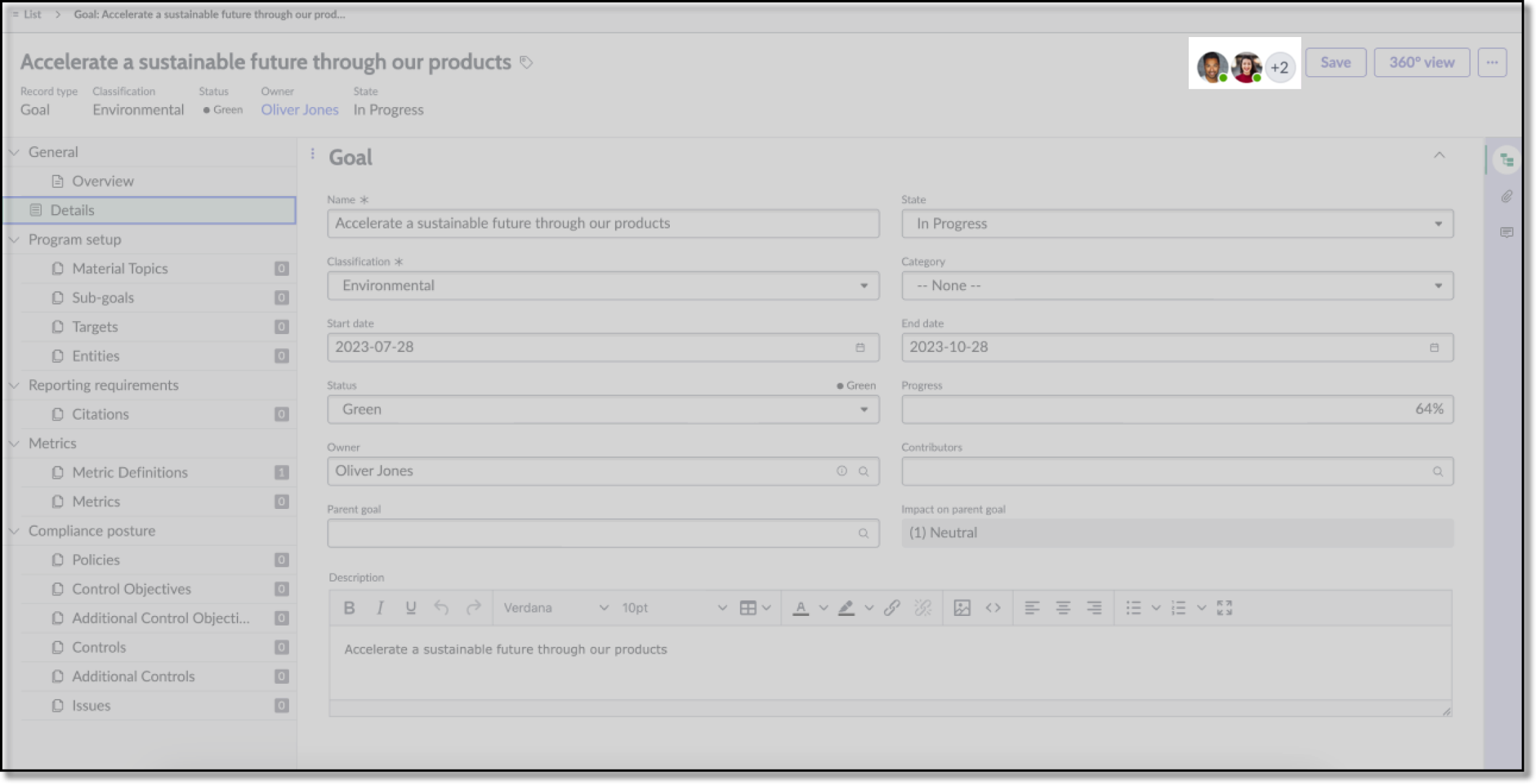
The form record presence component displays the avatars of other users who are viewing the record. Only two avatars are displayed at a time, with an overflow avatar indicating the presence of additional users. For more information, see the usage guidelines for form record presence.
Interactions and behaviors
This is how the form record presence component reacts to user interaction and changes to the container size when used in the record page vertical template.
- When more than 2 users are viewing the record, the component displays an overflow trigger avatar showing the number of additional users.
- When a users selects the overflow trigger, a popover appears, showing all users viewing the record.
- If the record has more than 11 viewers, a vertical scroll bar appears in the popover.
- Users can select individual avatars from the record or from the popover to contact that user.
Presets
The Record presence preset displays other users that are viewing the record concurently and provides a method for contacting those users.
Action bar
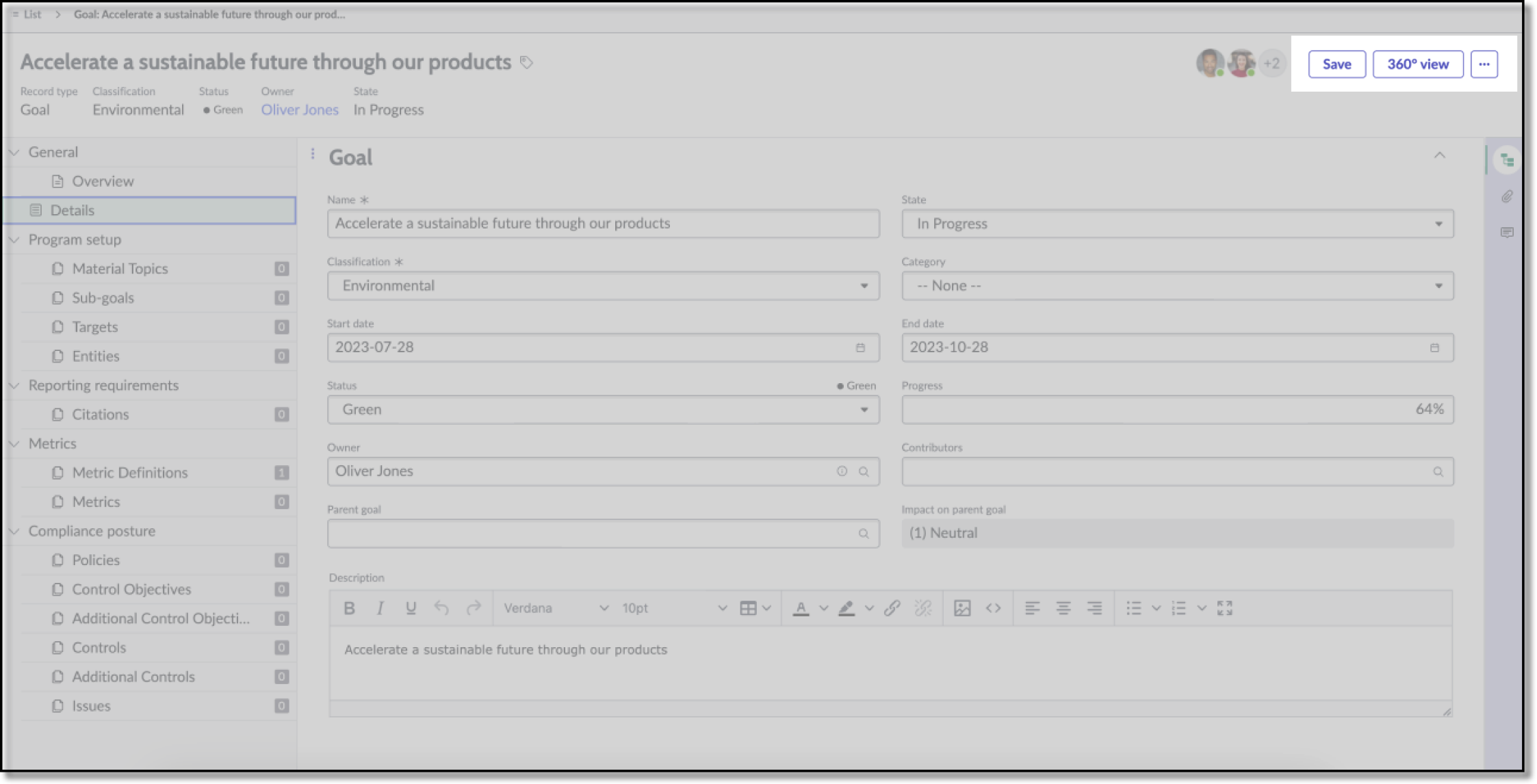
The action bar component contains buttons and menu items that allow users to interact with and take actions on a page. This component offers presets. For more information, see the usage guidelines for action bar.
Interactions and behaviors
Selecting a button or menu option executes the associated UI action for the record.
Presets
The Record actions preset provides actions for a user to manage the record, for example Save. The buttons that appear are defined by the default UI actions for the selected table.
Defaults
By default, the action bar component displays these elements:
- UI actions: Assign to me, Resolve, and Save actions
- Overflow menu: Copy Task and Delete actions
Content tree group
Content tree provides an expandable and selectable tree with configurable options to include elements such as identifiers, highlighted values, chevrons, text, icons, and dividers. For more information, see the usage guidelines for content-tree.
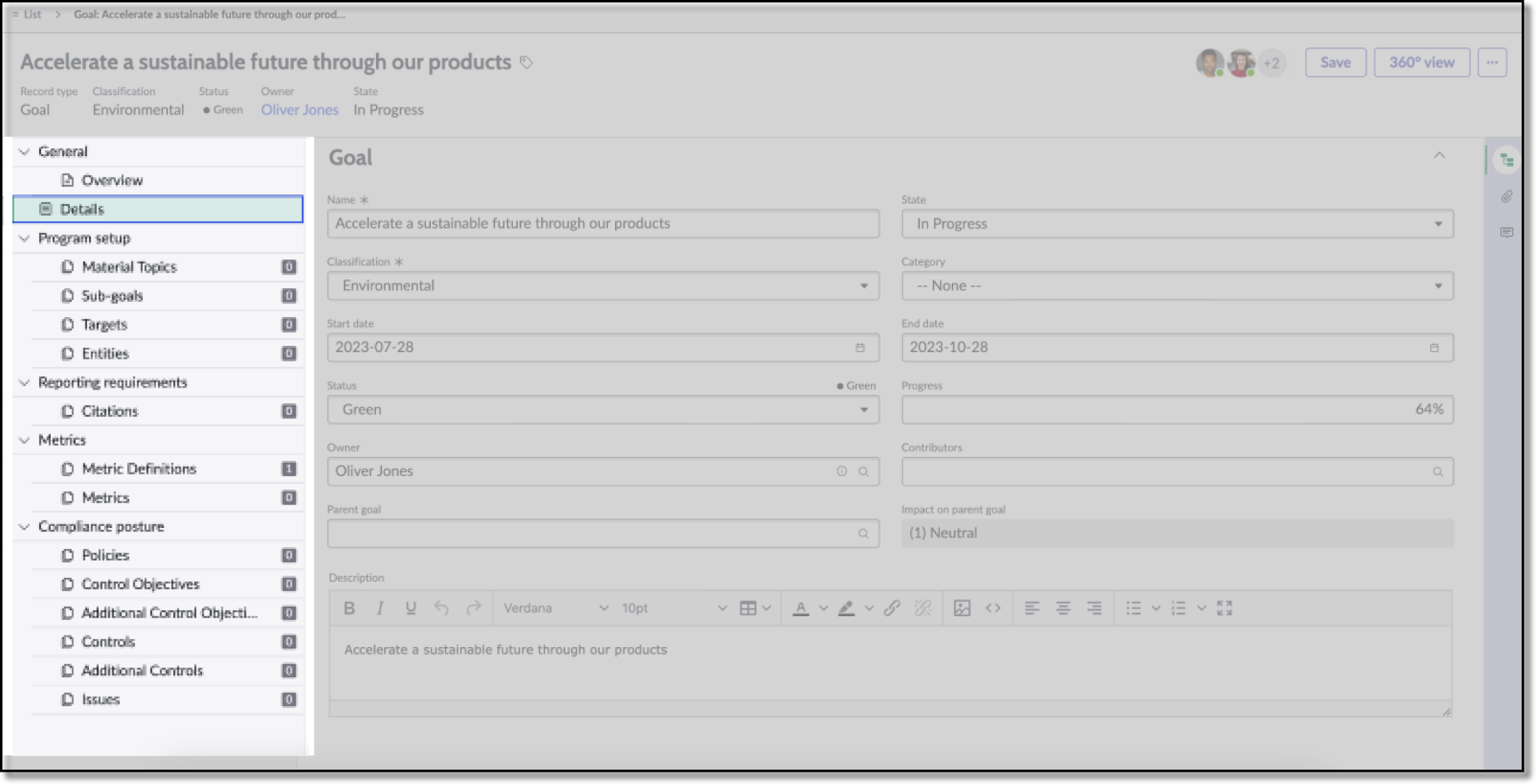
Interactions and behaviors
This is how the content tree group reacts to user interaction and to changes in the container when used in the record page vertical template.
- Selected tabs are marked with an active indicator.
- Parent-Child denotes the groups and group-items configured.
- Users select a tab to display the information from that tab in the content area (conditionally viewed sections).
Conditionally viewed sections:
- Form: Gives overall details of the record
- Related list: Gives overall details of the selected related record
- Viewport: Displays the selected UI Builder page
Tabs sidebar
The tabs sidebar contains vertical tabs that open subcomponents related to the current record in a larger panel. For more information, see the usage guidelines for Tabs.
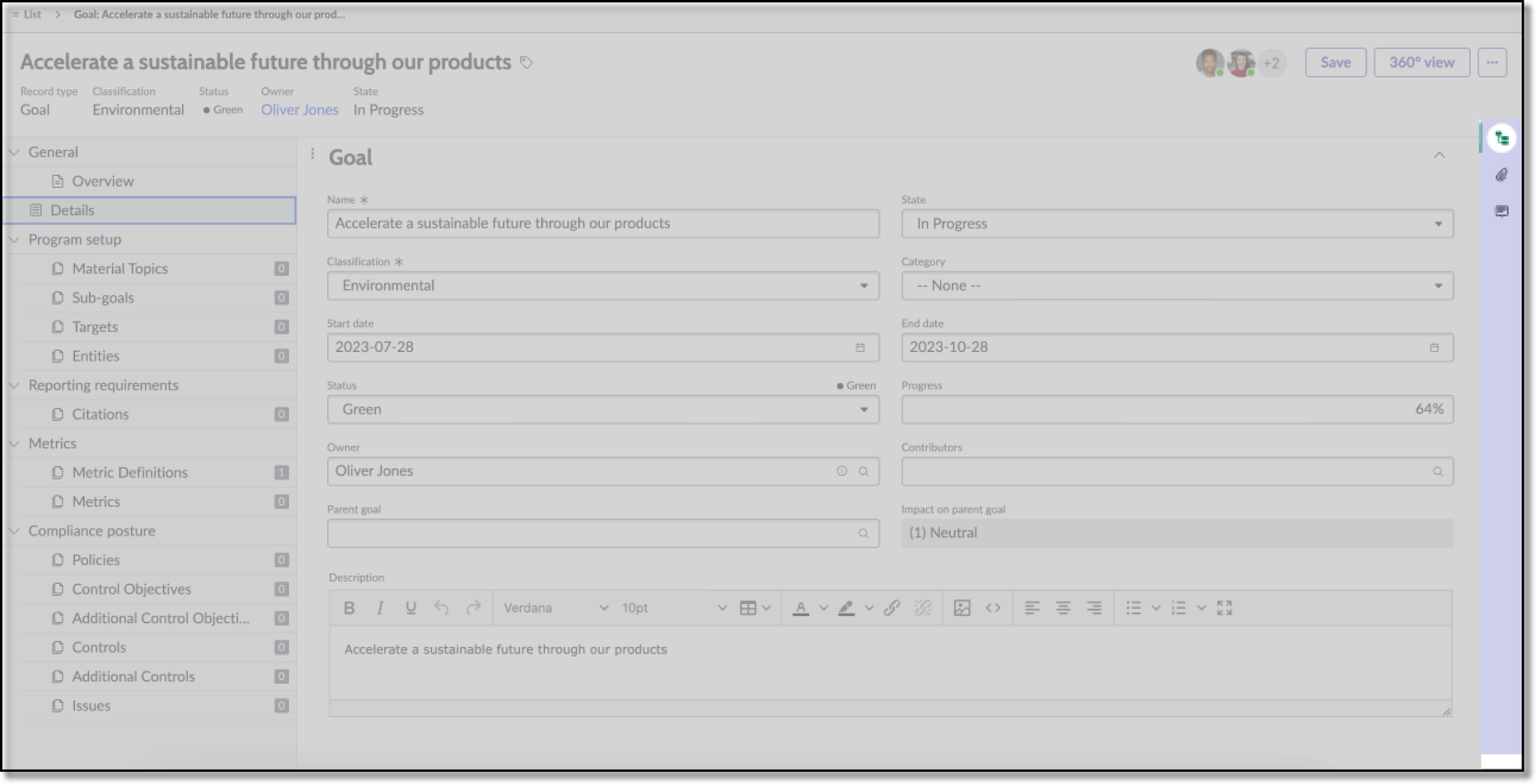
Interactions and behaviors
This is how the tabs sidebar component reacts to user interaction and changes to the container size when used in the record page vertical template.
- Users can set the tabs sidebar to be open or closed by default in the user Preferences menu > Settings.
- Selecting a tab in the sidebar when the content pane is expanded changes focus to that tab and opens the content for that tab. Selecting a tab when the panel is collapsed expands the panel and changes focus to that tab.
- When the panel is open, a user can select and drag the outer left edge to resize the width of the panel.
When text in the tabs component exceeds the width of the container or content area, the text truncates with an ellipsis, and a tooltip shows the full list of components on hover.
When the user selects a component from the overflow menu, the ellipsis remains selected.
Default
By default, the tabs sidebar component has these behaviors:
- The tabs sidebar is open by default.
- Related search results (agent assist), attachments, and templates can also appear as tabs in the sidebar.
Configurations
The record page vertical template provides presets for the major components with property and event mapping that fit most use cases. You can connect the presets provided to the Record controller, and the page will function perfectly without any further configuration. For details about preset values and event mapping see the UIB Setup documentation for each component on the developer portal.
You can override any preset property value with a custom configuration. However, the properties you override don’t receive automatic updates when you upgrade your system. For information about overriding and resetting preset values, see Override a preset for a component.
Usability
The record page vertical template complies with all internationalization and accessibility requirements.
Internationalization
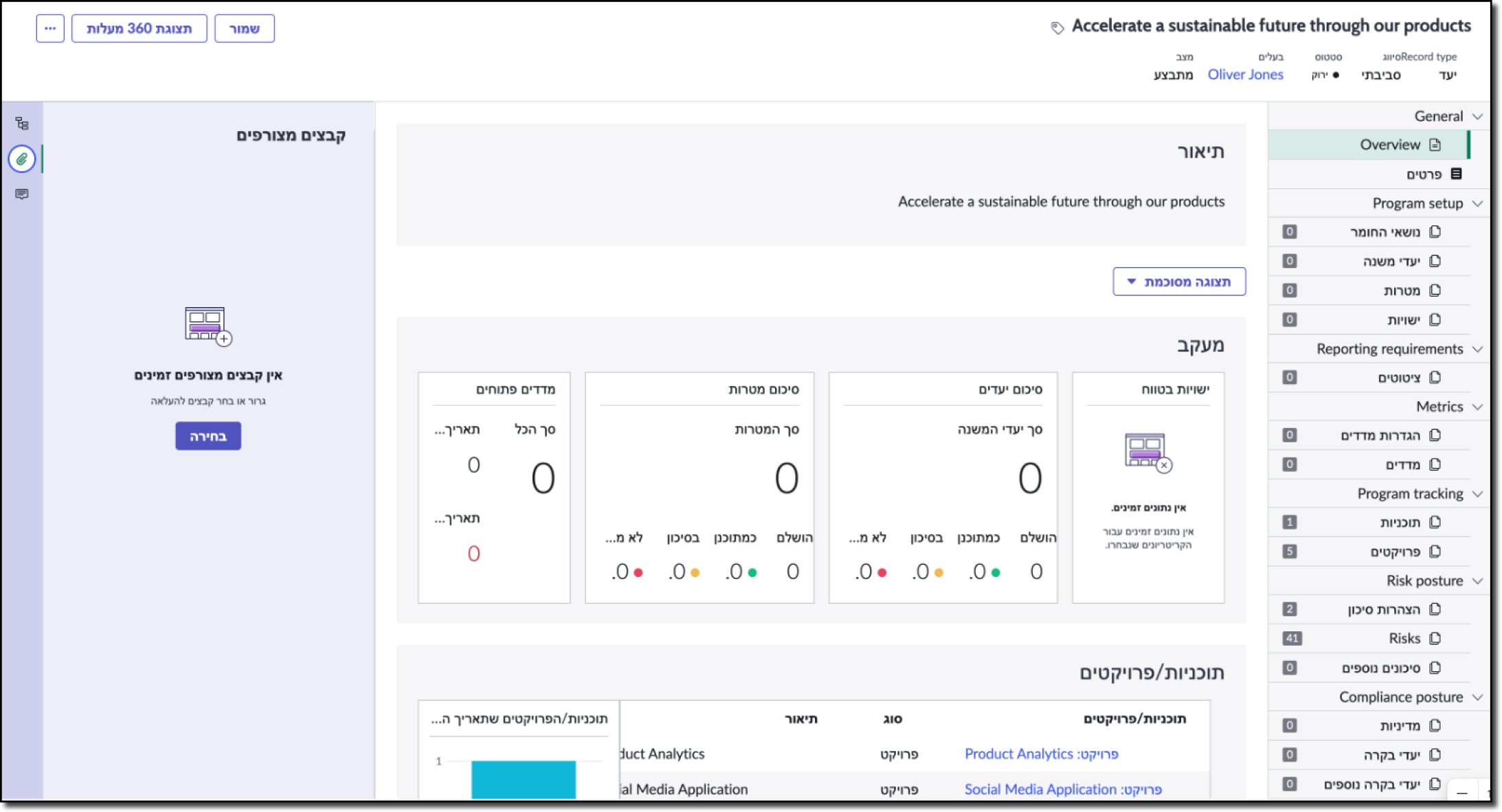
When this page template is used in an instance configured for a right-to-left (RTL) language, the individual components have their own behaviors. See the usage guidelines for the components used in the page for details.
Accessibility
For accessibility behaviors of specific components, see the usage guidelines for those components.
Record page vertical template tab order
This is the high-level tab order for the record page vertical template.
Note: For tab stop information about each component on the template, see the individual component usage guidelines.
Keyboard interactions
Each component used in a template has its own keyboard interactions. See the usage guidelines for each component for internal keyboard interactions.
Screen readers
When you apply ARIA labels to a component, screen readers announce the controls and content of each component in the prescribed tab order. See the usage guidelines for details.