

Anatomy
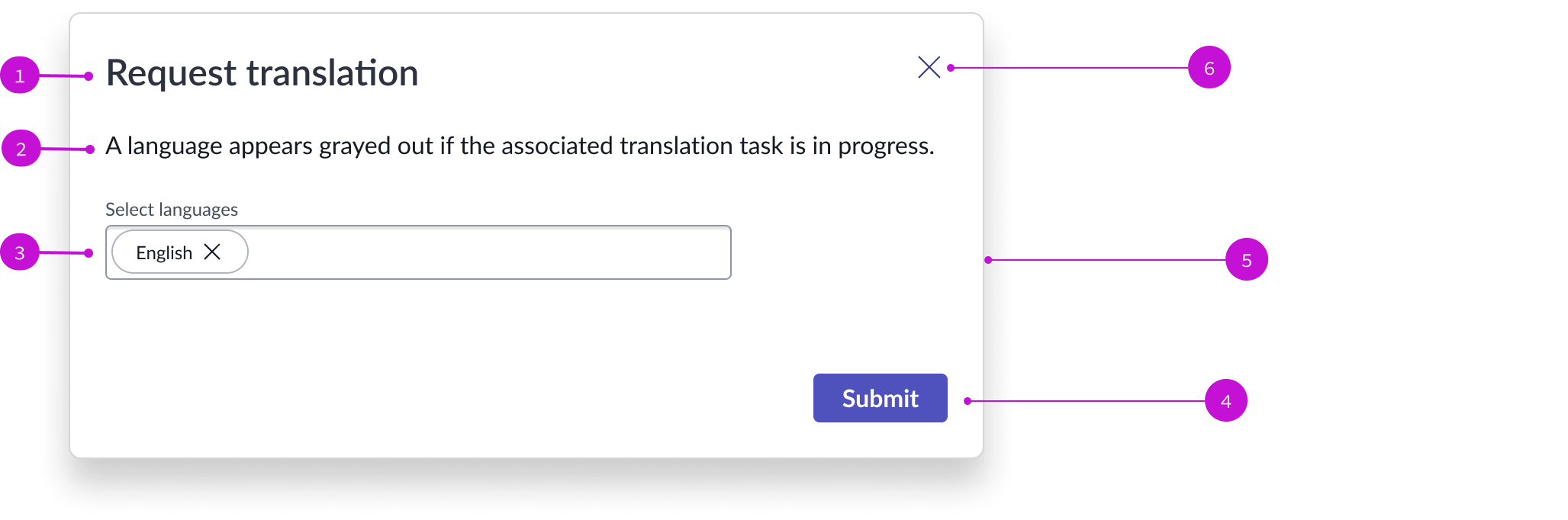
- Modal header: Describes the purpose of the modal
- Modal body content: Text explaining what to do in the modal
- Typeahead multi component: Contains a dropdown panel of installed languages; selected languages are displayed as result pills
- Primary action button: Action button that launches the selected translations
- Modal component: Modal used for requesting translation
- "Close" action: Iconic button for closing the modal
Usage
A knowledge author can use the request translation modal to select one or more languages to use for translating an article. Each language selected creates a translation task for that language when the request is submitted.
Components
The request translation modal is built with Next Experience components that have their own attributes and interactions.
Modal
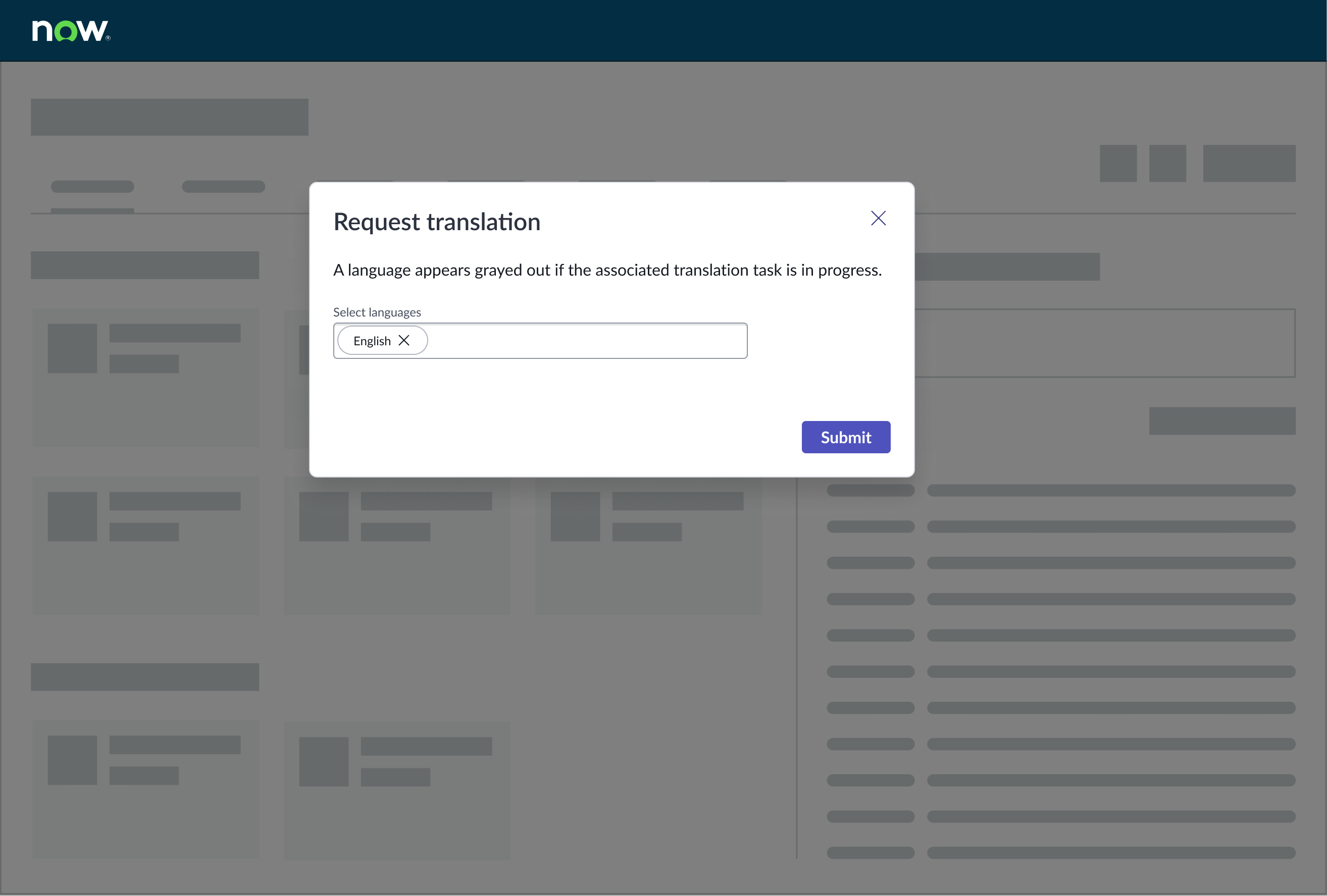
The modal component appears over the underlying content and provides users with a method to select languages for translation from a typeahead multi selection field. A primary action button enables the user to submit the translation request directly from the modal. For more information see the usage guideline for modal.
Interactions and behaviors
- The request tranlation modal resizes automatically when the container changes size.
- The modal body text can wrap to two lines if necessary. After that the text truncates.
- To request translations, the user selects the “Submit” button after selecting one or more languages from the dropdown panel.
- The user closes the modal by selecting the “X” close icon in the upper right corner.
Defaults
By default the request translation modal displays these attributes:
- The primary action button label is “Submit.” Selecting the button allows the user to submit their language selections.
- The system creates a translation task for each language selected.
Typeahead multi
The typeahead multi component in the request translation modal enables a user to quickly fill in the input field with selected languages, expressed with the pill component. For more information, see the usage guidelines for typeahead multi.
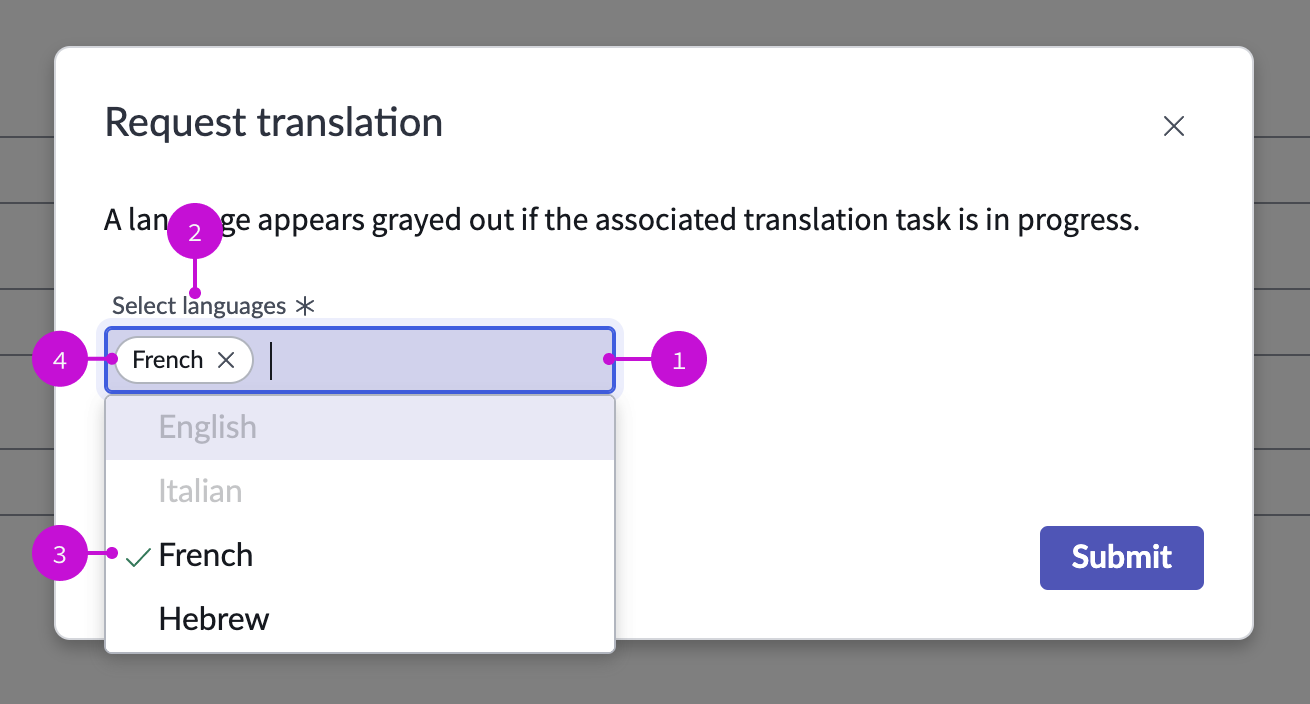
- Input field: Space where the user enters text; a dropdown panel opens and responds dynamically as the user types
- Field label: Identifies what the user is selecting in the field
- Dropdown panel: Displays a list of selectable languages; user can select more than one language to populate the input field
- Result pill: Pill containing a language selected from the dropdown panel; multiple result pills can appear in the input field
Interactions and behaviors
- Language selection indicators in the dropdown:
- Any languages that are not available for selection appear in gray. This indicates that translation for that language is currently underway or has already been done.
- Available languages appear in dark text.
- A green check mark indicates a languages the user has already selected.
- As the user selects languages, they appear as result pills in the typeahead multi field. To lanuch a translation for a specific language, the user selects that pill. To remove a pill, the user selects the close icon on the pill.
- When the number of result pills exceeds the length of the input field, the input field area extends vertically to accommodate another row of pills. After two rows of pills the input field shows a scroll bar.
Defaults
By default the typeahead multi component displays these attributes:
- The input field supports multiple selections.
- The search behavior is set to “Managed,” which means that no filtering occurs as the user types.
- The search field displays the required field indicator (asterisk).
Configurations
The request translation modal page template is intended to be used as-is in your experience and provides default functionality that fits most use cases. The page is created from a template that is updated automatically. If you copy the template in UI Builder and customize the page, you won’t receive template updates, and your page might not function properly after an upgrade. However, some properties for the components used in the request translation modal page are configurable in UI Builder. Configuring these properties will not affect template upgrades.
Modal
Designers can configure the following for the modal in UI Builder:
- Modal header text and header levels (primary, secondary, tertiary)
- Modal body text and HTML tags
- Add components to the modal
Typeahead multi component
Designers can configure the following for typeahead multi in UI builder:
- Configure the field label
- Enable or disable the required field indicator (asterisk)
- Control how the items in the field are filtered as the user types in the input field
Usability
The request translation modal page template complies with all internationalization and accessibility requirements.
Internationalization
When this page template is used in an instance configured for a right-to-left (RTL) language, the individual components have their own behaviors. See the usage guidelines for the components used in the page for details.
Accessibility
For accessibility behaviors of specific components, see the usage guidelines for those components.
Keyboard interactions
Each component used in the request translation modal page template has its own tab order and keyboard interactions. See the usage guidelines for details.
Screen readers
When you apply ARIA labels to a component, screen readers announce the controls and content of each component in the prescribed tab order. See the usage guidelines for details.