

Anatomy
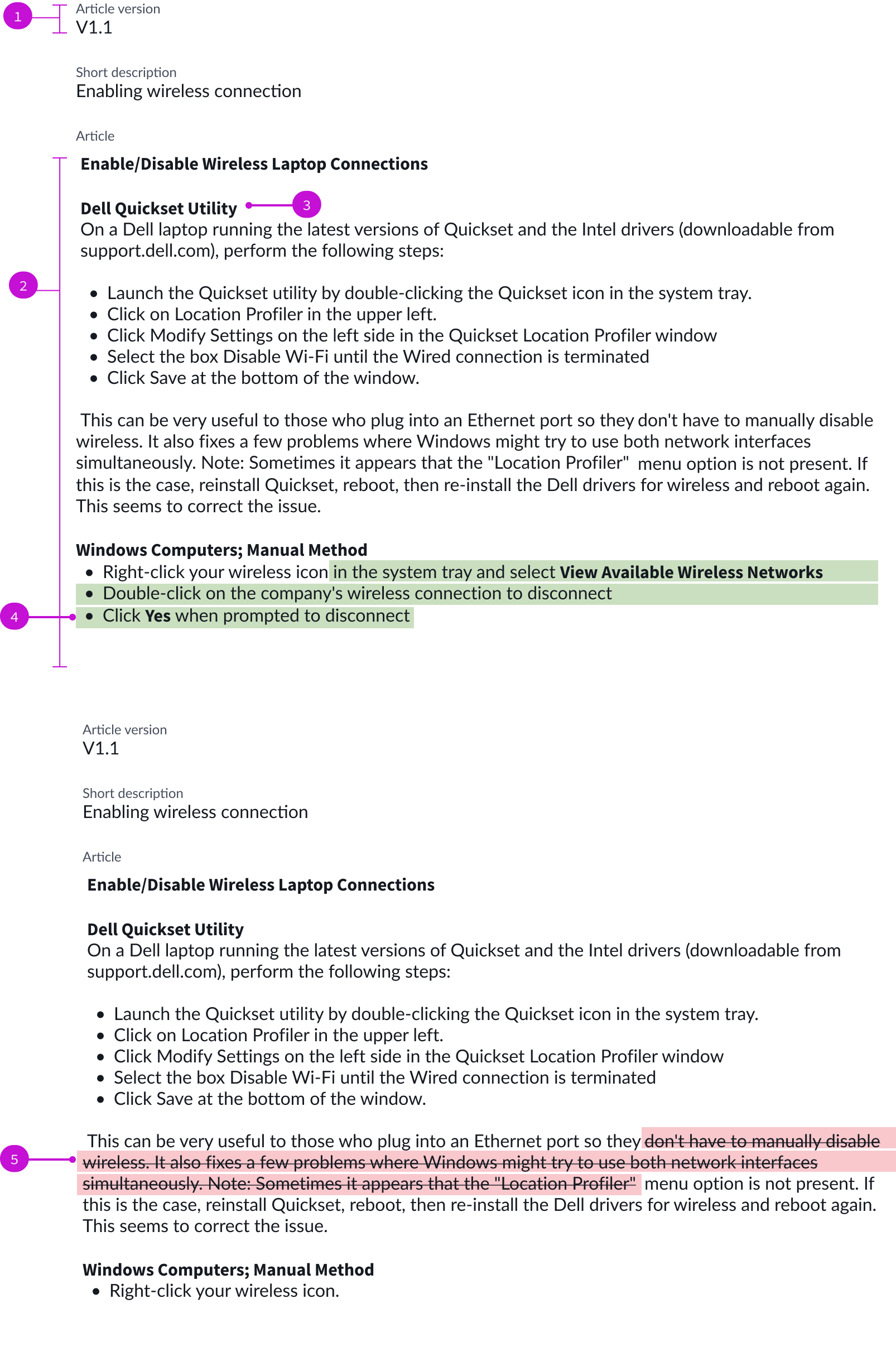
- Label value pair: Shows the text attributes of the article, such as the version number
- Article body: Main content area displaying the authored content
- Content detail: Details of the article supplied by the author; the content template used affects how these details are displayed
- Added content: Recently added content highlighted in green
- Deleted content: Removed text highlighted in red and lined out
Usage
Use the version compare page template to compare different versions of the same document and show the differences. You can configure the editing mode to enable users to make changes to the latest version directly in the component. You can use this template to compare and edit field values in data records. Users can also select to display a translated version of a document and edit that version.
Components
The version compare page is built with Next Experience components that have their own attributes and interactions.
Comparator
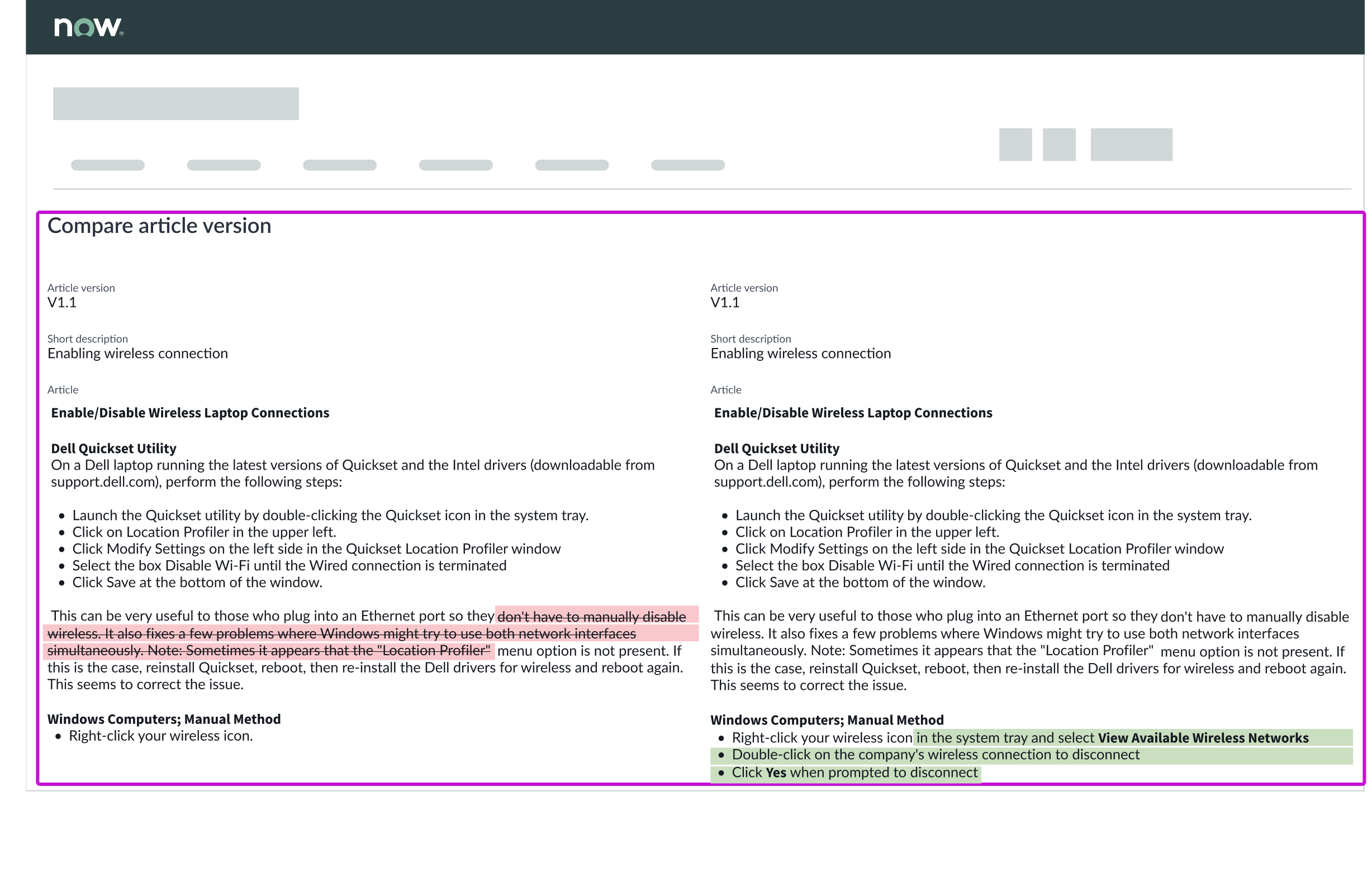
The comparator component is used to compare content side-by-side by highlighting the differences between the original and changed content. Comparator can also be used to edit or translate the changed content in place. For more information see the usage guidelines for comparator.
Interactions and behaviors
- If editing is configured, users can make changes in the latest version.
- Green highlighting is used to indicate added content.
- Red highlighting is used to indicate deleted content. In addition, deleted content is struck through.
Defaults
By default the
- Original version displayed in the left panel and newer version in the right panel
- Red highlighting for deletions and greeen highlighting for added content
Configurations
The version compare page template is intended to be used as-is in your experience and provides default functionality that fits most use cases. The page is created from a template that is updated automatically. If you copy the template in UI Builder and customize the page, you won’t receive template updates, and your page might not function properly after an upgrade.
Usability
The version comparte page template complies with all internationalization and accessibility requirements.
Internationalization
When this page template is used in an instance configured for a right-to-left (RTL) language, the individual components have their own behaviors. See the usage guidelines for the components used in the page for details.
Accessibility
For accessibility behaviors of specific components, see the usage guidelines for those components.
Keyboard interactions
Each component used in the version compare page template has its own tab order and keyboard interactions. See the usage guidelines for details.