

Anatomy
Learn about the individual parts of custom illustration.
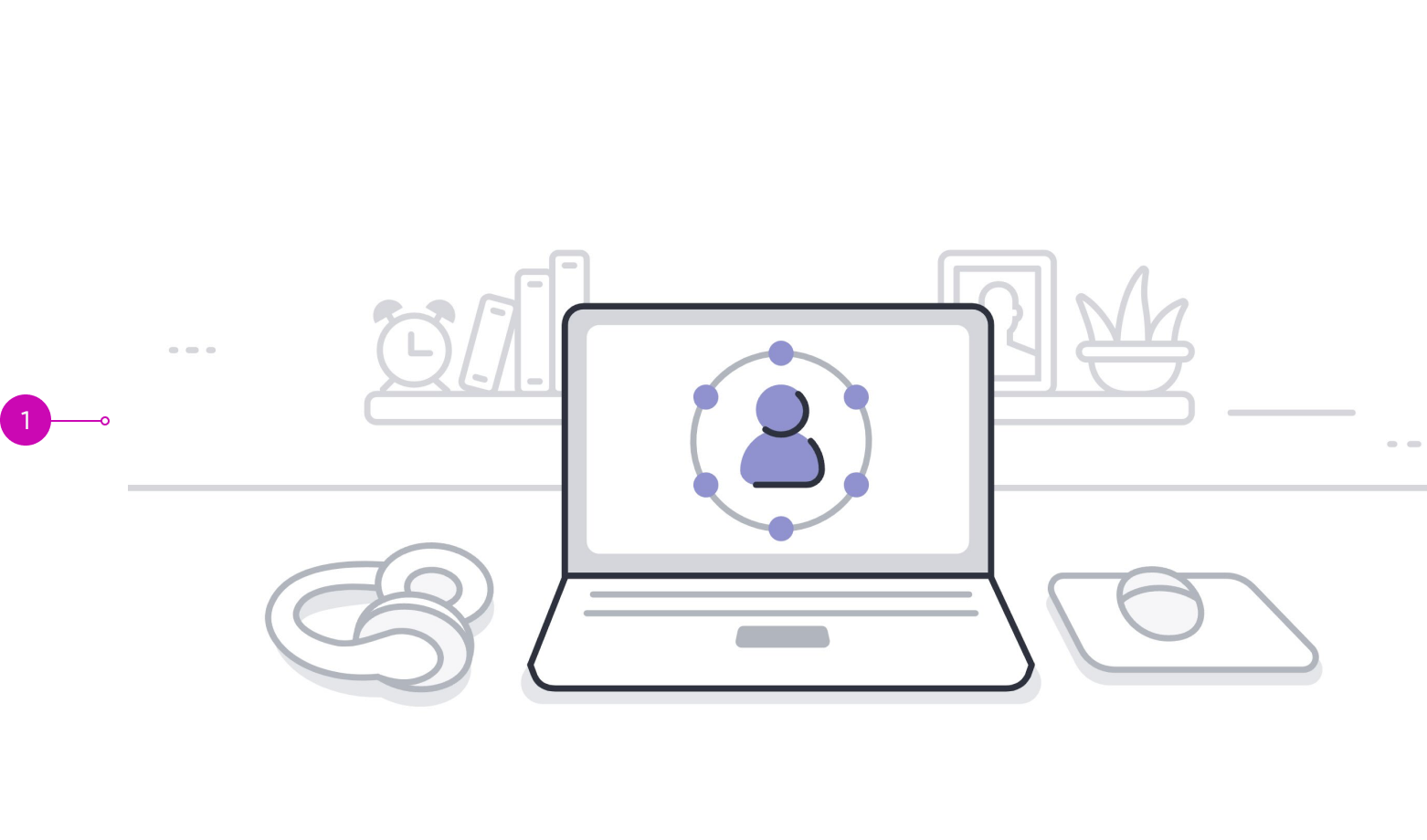
- Container: Holds the SVG illustration
Usage
Use the Custom illustration component to insert a completely theme-able, inline SVG image on a Workspace page. When you apply a theme-able image, the SVG image colors change to match the theme and based on theme, the image can completely change. For example, if you apply a custom theme to a page, you can also replace a standard image - such as the default banner - on the page with a custom illustration.
Configurations
Learn how to customize custom illustration by configuring the available properties.
SVG image source
To configure a custom illustration, you can insert the URL of the SVG image.
Token ID
Advanced users can use the Token ID to reference a different image than the SVG image source associated with a custom theme. The token ID always takes precedence over the SVG image source.
Width
You can configure the width of your inline SVG image in pixels or a percentage of the container. The default width is 100%.
Height
You can configure the height of your inline SVG image in pixels or a percentage of the container. The default height is 100%.
Accessibility alt text
It’s recommended that you add alt text for your custom illustration.
Design recommendations
- Display images at their intended aspect ratio to avoid distortion
- Size the image to fit the desired display. The image should not appear blurry or pixelated
- Be sensitive to load times. Keep resolutions minimal when possible
- Provide alt text or a caption to ensure accessibility
- Use context-relevant images
- Provide a focal point and avoid images that require the user to search for the meaning
Usability
Custom illustration complies with all internationalization and accessibility requirements.
Accessibility
Learn how to access the actionable elements of custom image through screen readers.
Keyboard interactions
Arrow up, Arrow down, Arrow left, Arrow right: Use to access and read the ALT text attached to the image when the screen reader is in browse/read mode.
Note: Because the image component doesn’t have any actionable elements in it, the Tab key can’t select the component.
Screen readers
Custom illustration has no elements that a screen reader can announce.