
Overview
The chat screen enables users to interact with the configured virtual agent (for example Now Assist) to get help, ask questions, or perform actions. It provides a conversation-based interface that supports both AI-driven and human-assisted interactions, consolidating chat history, system messages, and user inputs in a single, scrollable modal.

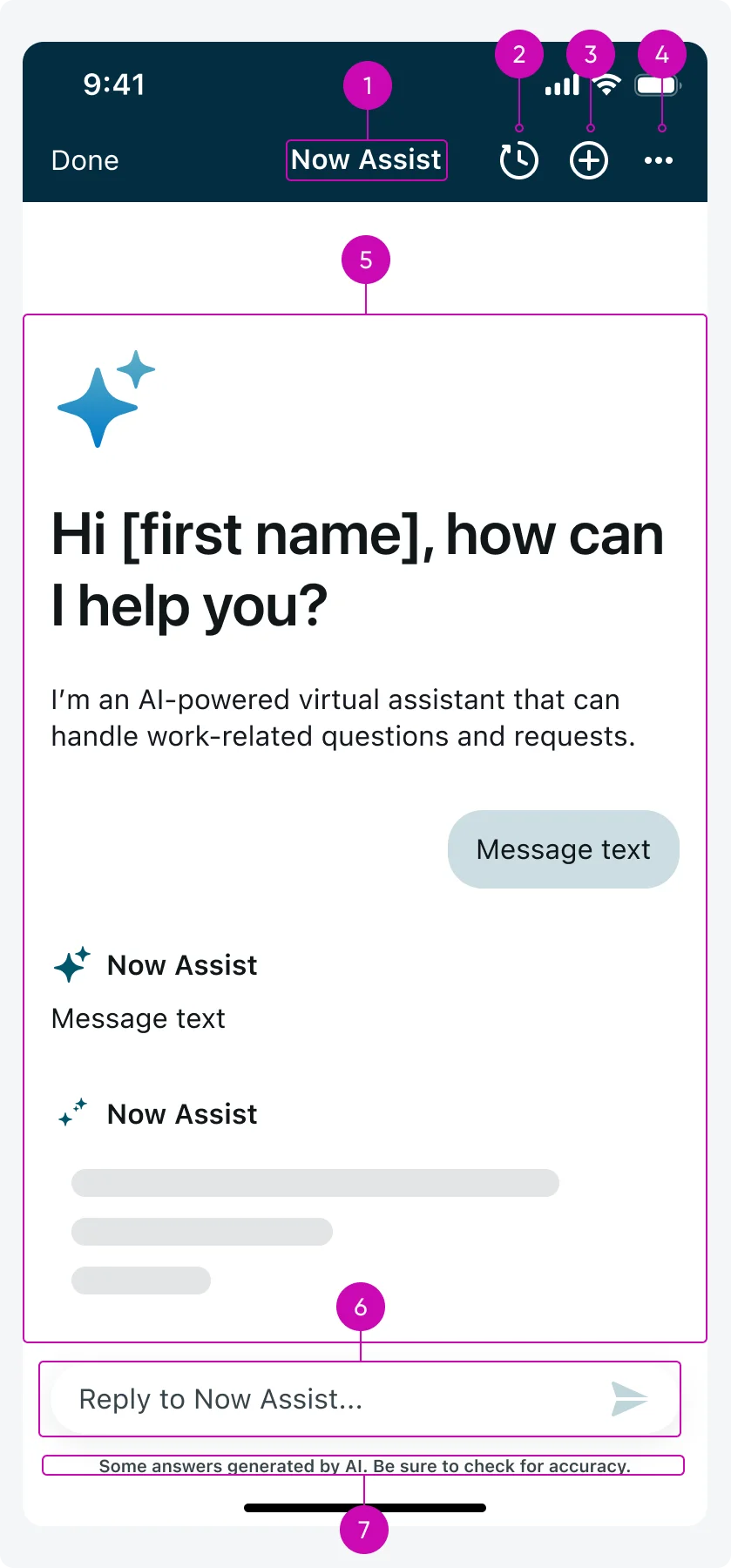
iOS
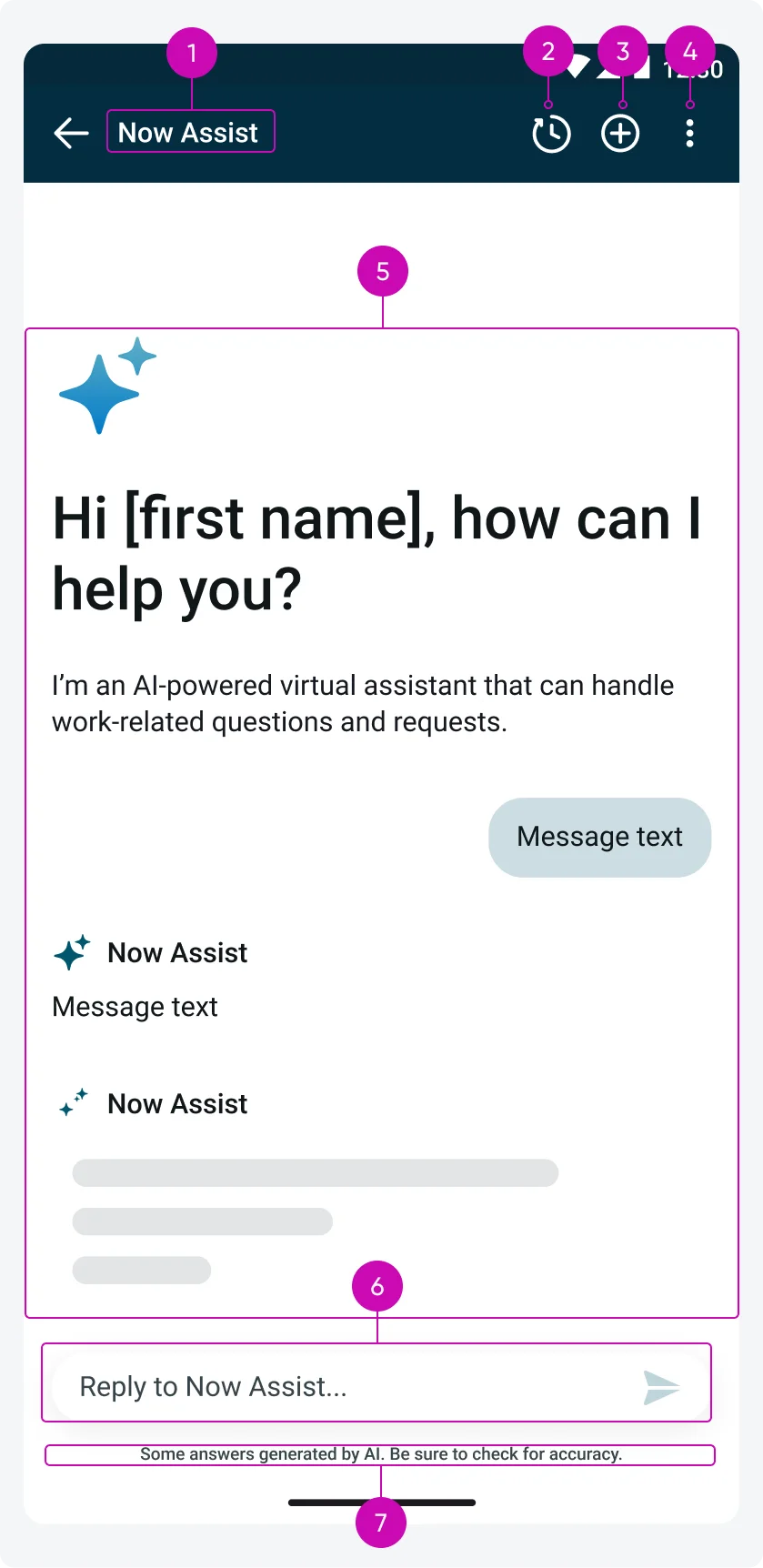
Android
- Virtual Agent name: Displays the name of the virtual agent.
- Chat’s list icon: Provides access to previous conversations.
- New chat icon: Starts a new conversation.
- Overflow menu: Includes actions such as call support, email support, or contact live agent, depending on user eligibility and app configuration.
- Conversation: where conversation happens, for a full list of controls scroll down.
Configurations
The Chat screen can be customized to fit different app contexts and user needs.
Agent name and branding
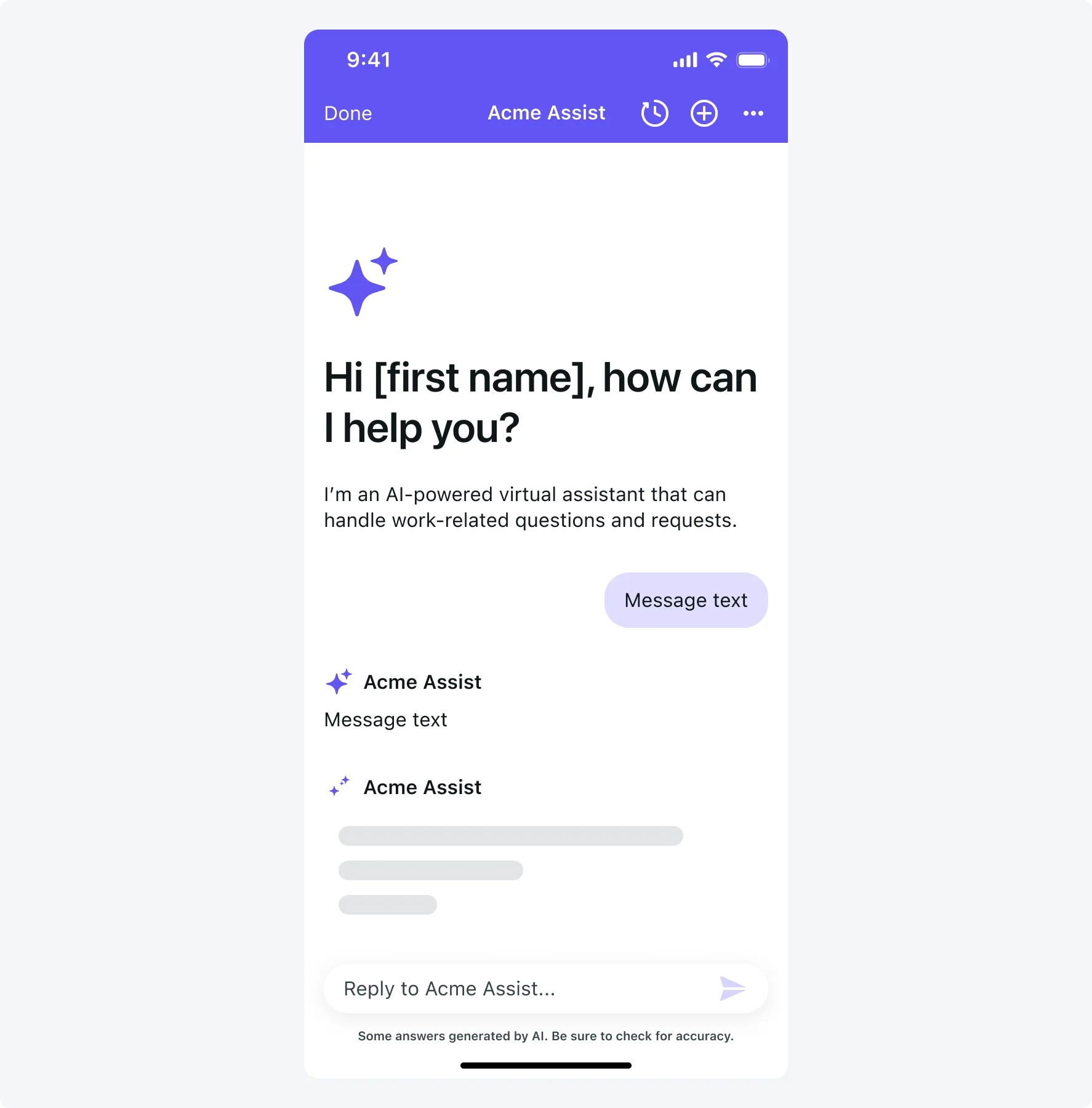
You can configure the agent name and branding to match the product or feature.