iOS
Android
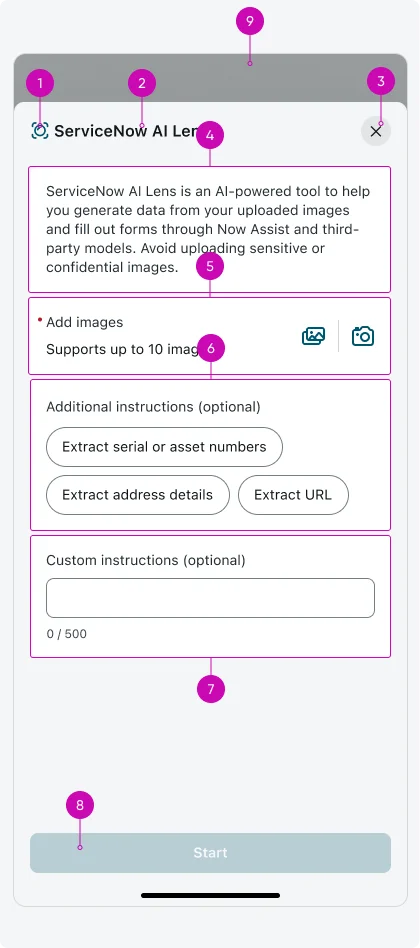
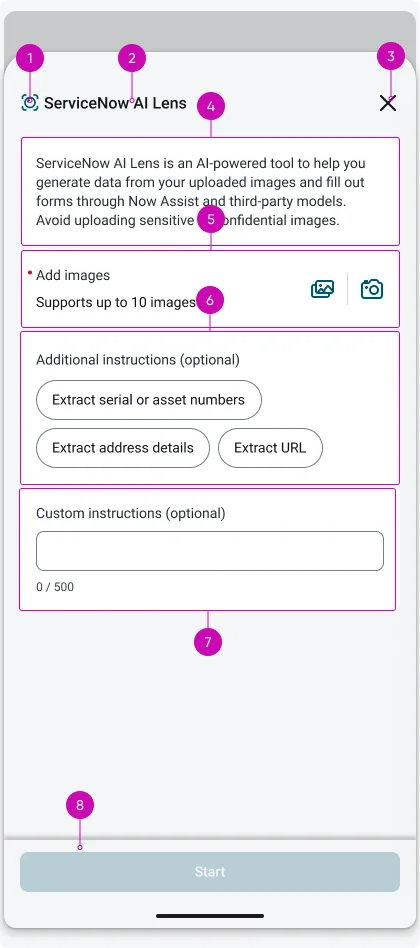
- ServiceNow Lens icon: A visual indicator icon next to the title that represents the ServiceNow AI Lens feature, helping with visual identification and branding.
- Sheet title: Displays the name or state of the sheet.
- Sheet action: An action button in the top-right corner that allows users to dismiss the sheet or stop the current process.
- Introduction section: An informational text block that explains what the ServiceNow AI Lens tool does and provides important warnings about avoiding sensitive or confidential images.
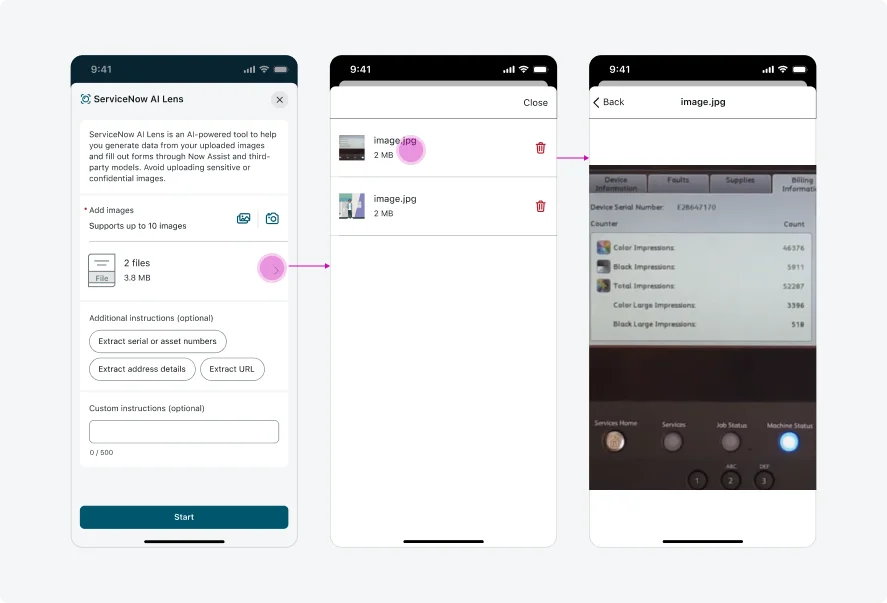
- Image upload section: The area where users can add images from gallery or camera and review uploaded images.
- Additional instructions (optional): When configured, users can select an optional instruction from a pre-defined list to guide the AI processing.
- Custom instructions (optional): When configured, users can enter optional instructions (500 character limit) to guide the AI processing. Only applicable if no additional instruction is selected.
- Start button: The primary call-to-action button at the bottom of the sheet that initiates the AI processing when tapped.
- Sheet overlay: Adds a darker background to help user focus on the sheet content.
Variants
The ServiceNow AI Lens has 2 variants: State and User instructions.
State
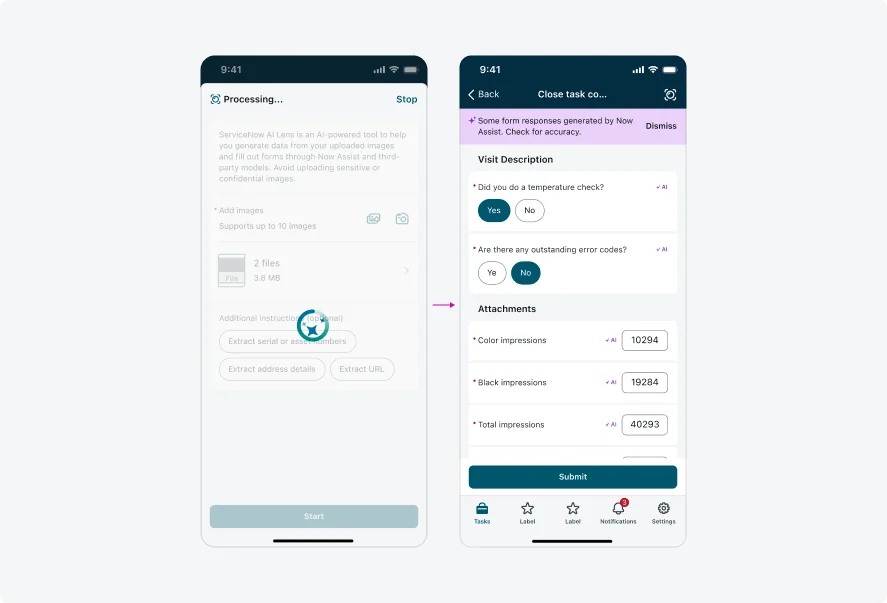
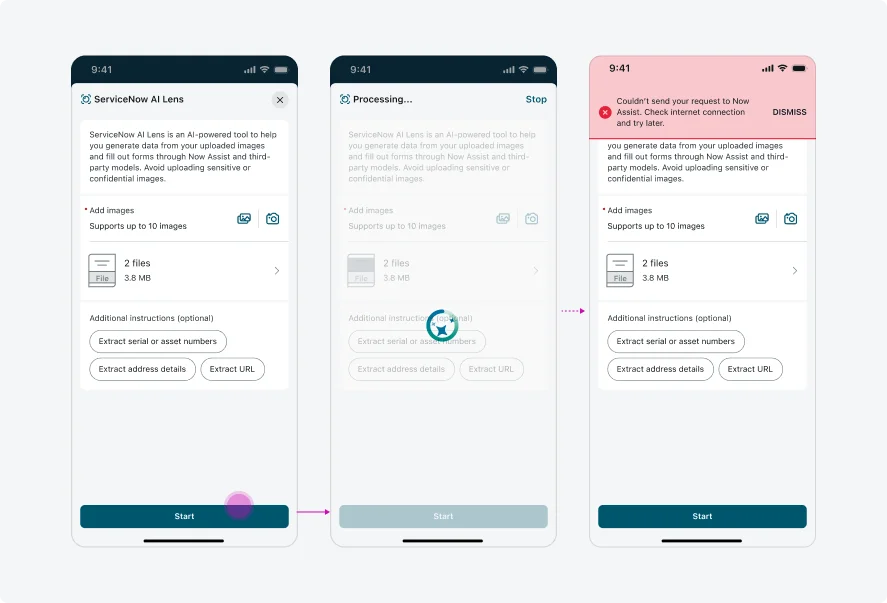
In default mode, users can close the sheet by tapping the X in the top right corner. When in processing mode, a loading animation will signal the state, and users can halt the process using the "Stop" button on the top right. User cannot make any edits during the processing mode.
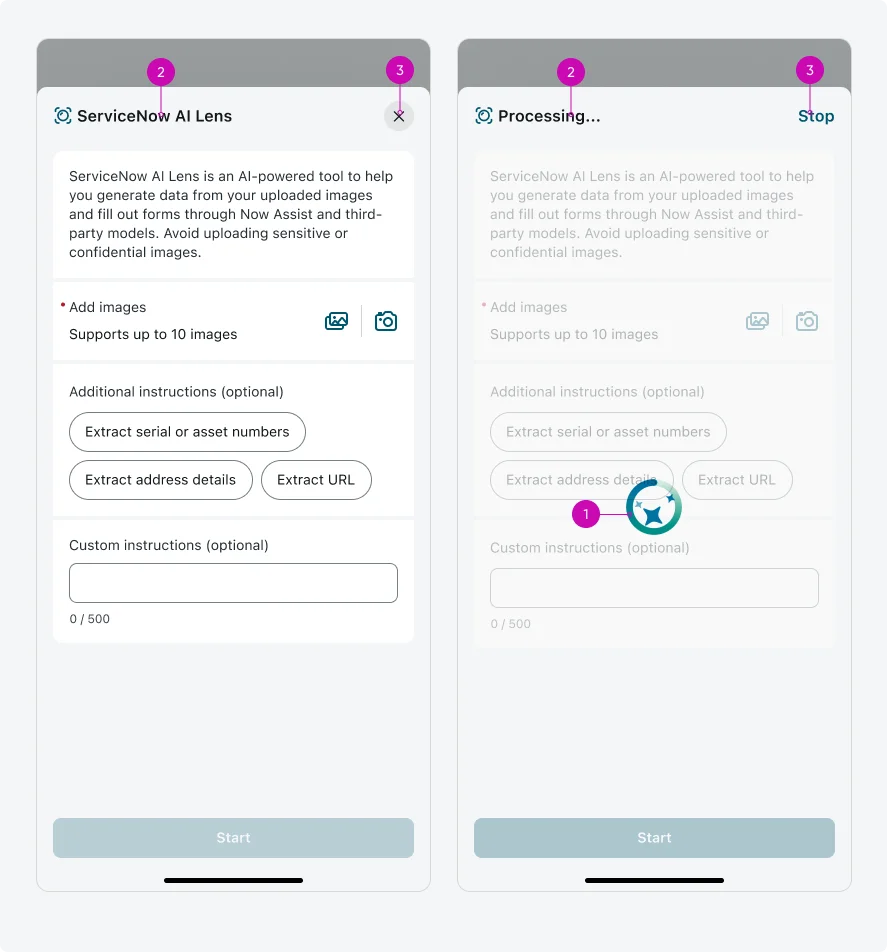
- Loading animation: Appearing as an overlay on the content to indicates processing state.
- Sheet title: Displays the name of the sheet. In default mode, the title displays the feature name “ServiceNow AI Lens”. When user starts the process, the sheet title will change to “Processing...” until the process is completed.
- Sheet action: An action button in the top-right corner that allows users to dismiss the sheet (shows "X" in default state) or stop the current process (shows "Stop" in processing state).
User instructions
User can add additional instructions from the following types:
- Text only: 500 character limit.
- Choice only: Pick 1 choice picker as additional instruction.
- Text or Choice picker: Select either the Text or Choice picker to input text as an additional instruction or to choose from the available options. If a choice is selected, the text input will be hidden and not considered part of the instruction.
- None: Extra guidance is not allowed.
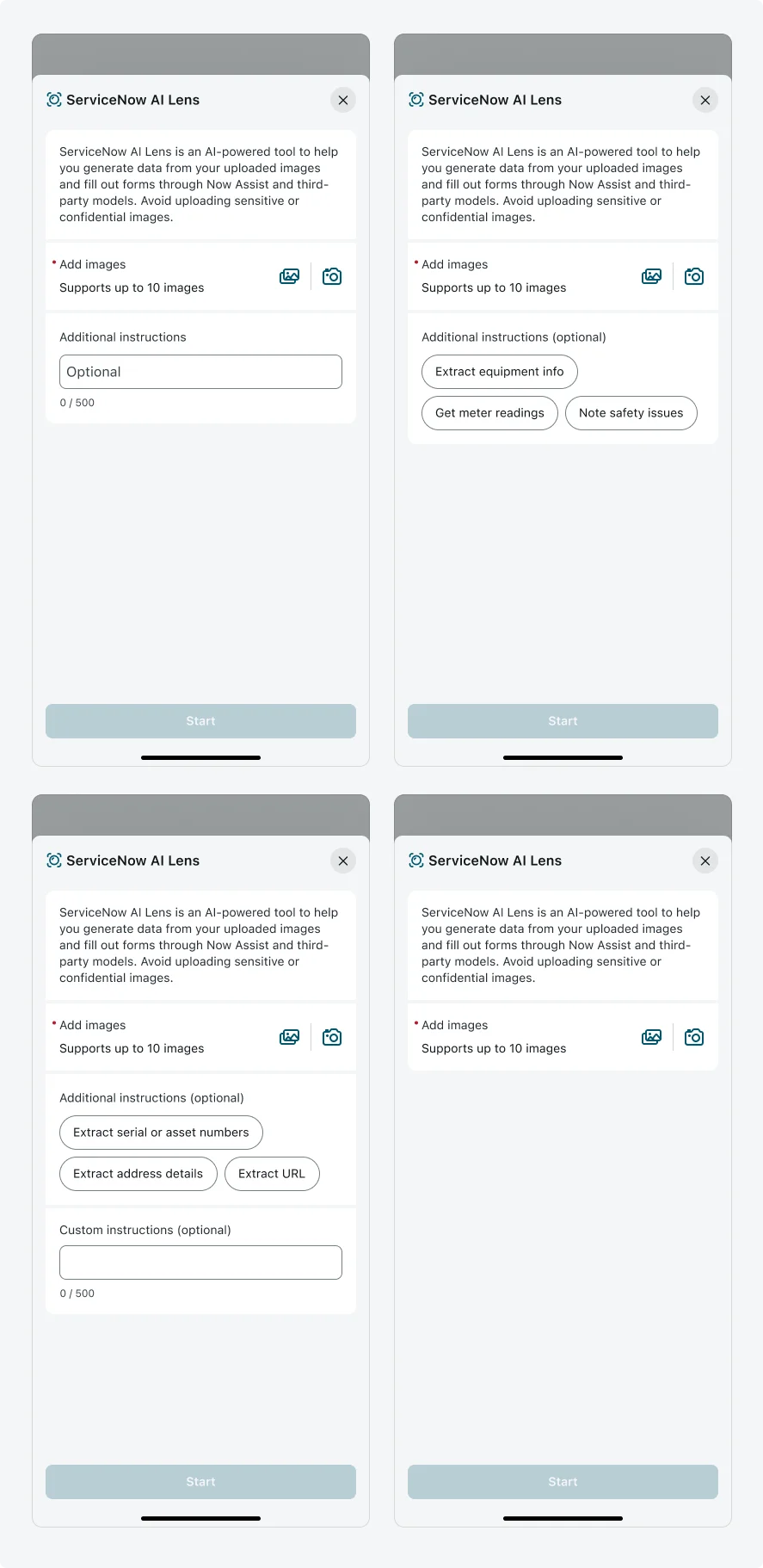
Configurations
As outlined in the Variants section, user instructions can be configured using the following types:
- Text only: Users may enter free text up to 500 characters. This limit is enforced by the backend and cannot be modified.
- Choice only: Admins can configure up to five choice options, each with a maximum length of 50 characters.
- Text + Choice picker: Offer both Text and Choice picker for users to add additional instructions. The text input and choice picker follow the same constraints described above.
- None: guidance from user is not allowed.
Alignment and positioning
Align the sheet to top fo the screen excluding the status bar.
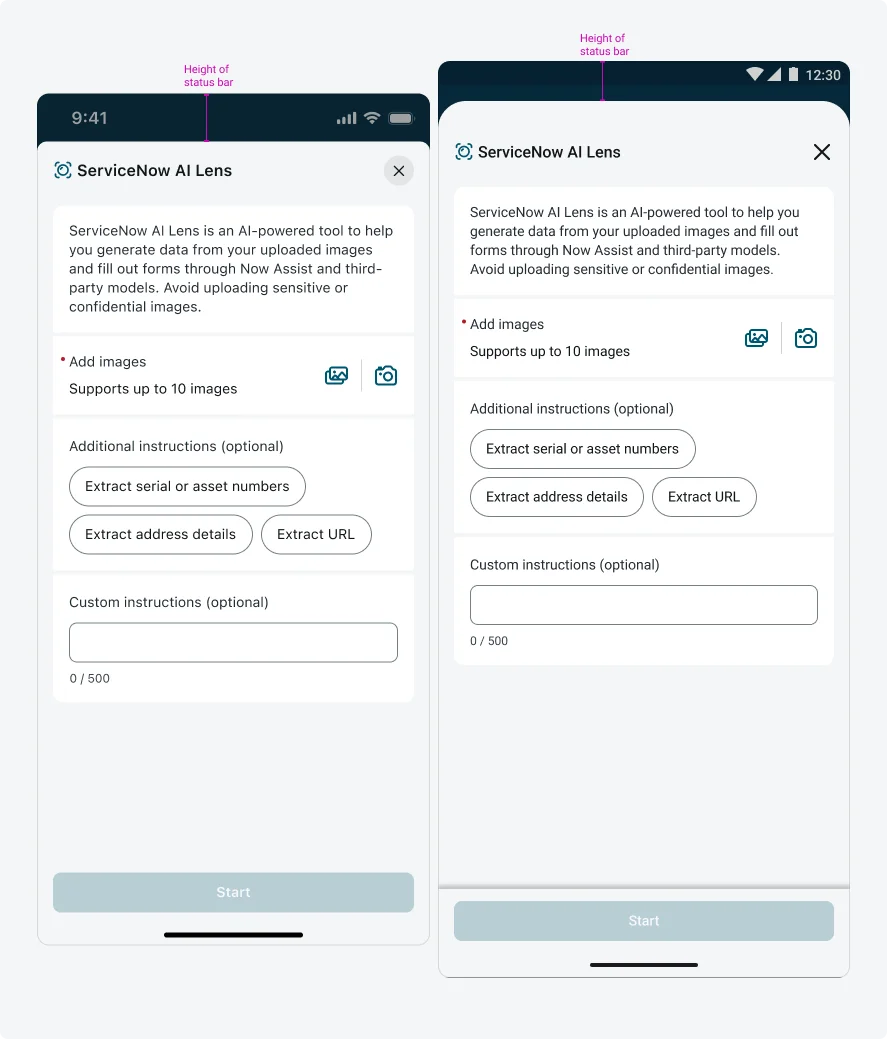
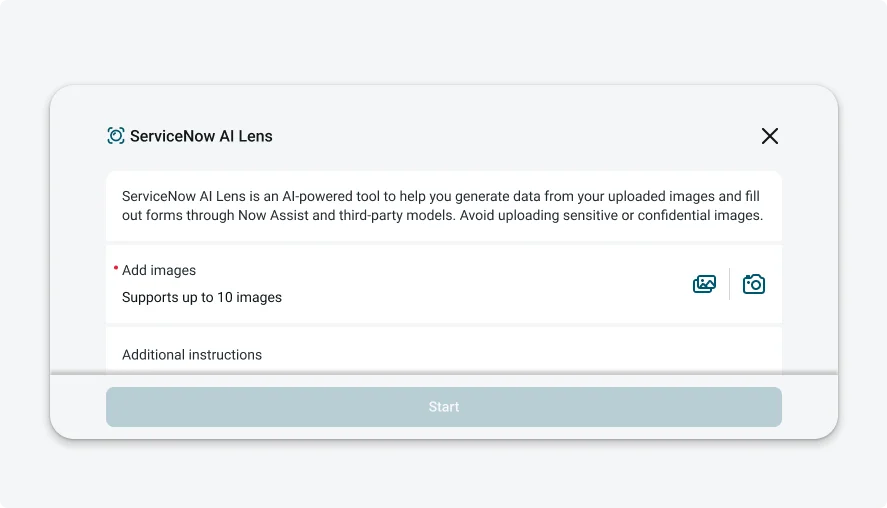
In landscape mode, the sheet takes up the entire screen with an increased margin size to left and right side.
Interactions
Learn how ServiceNow AI Lens responds when a user interacts with it.
Add image using camera
Tap on camera icon to add image using camera. Once the captured images has been uploaded, the screen will automatically revert to the Lens sheet.
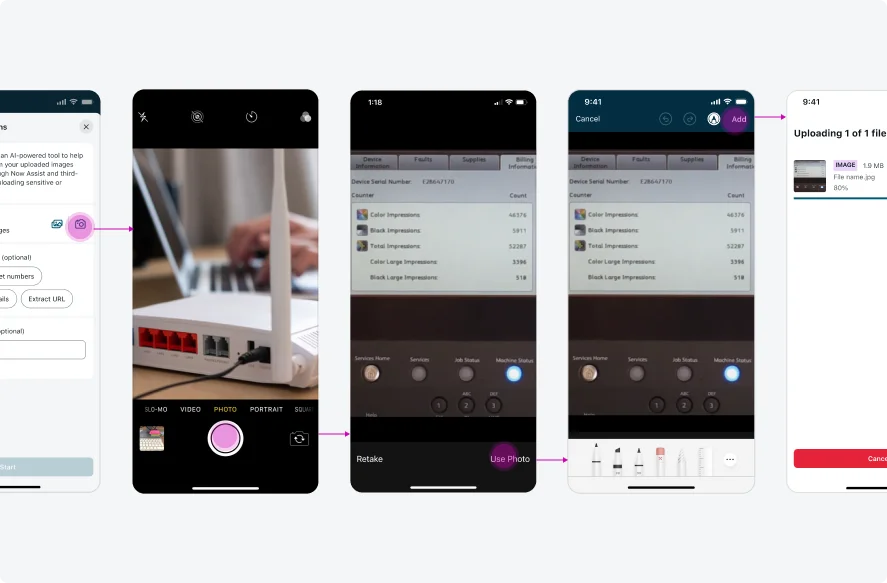
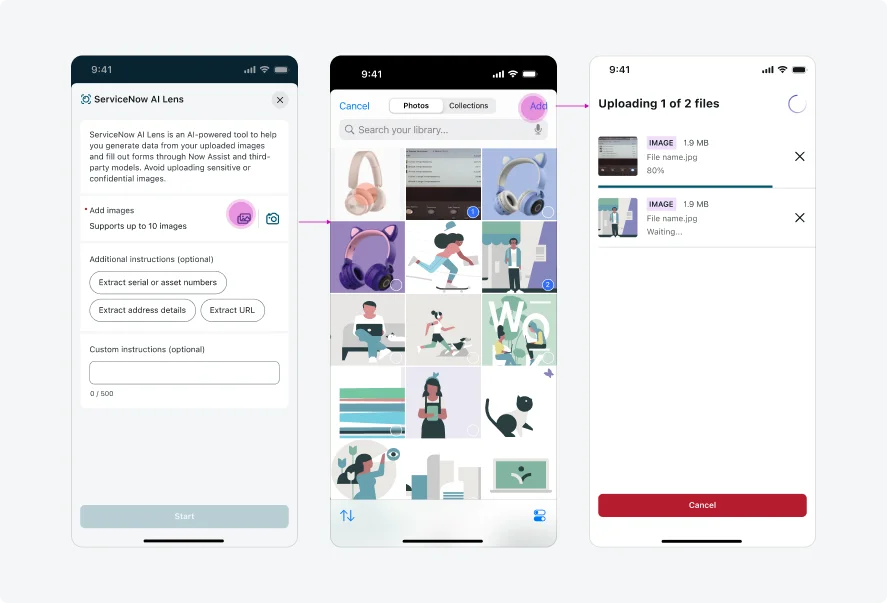
Add image from library
Tap on the Add image icon to choose images from your library. After user have made the selection and tapped Add, the selected images will be automatically uploaded via upload manager screens. Once all images have been uploaded, the screen will automatically revert to the Lens sheet.
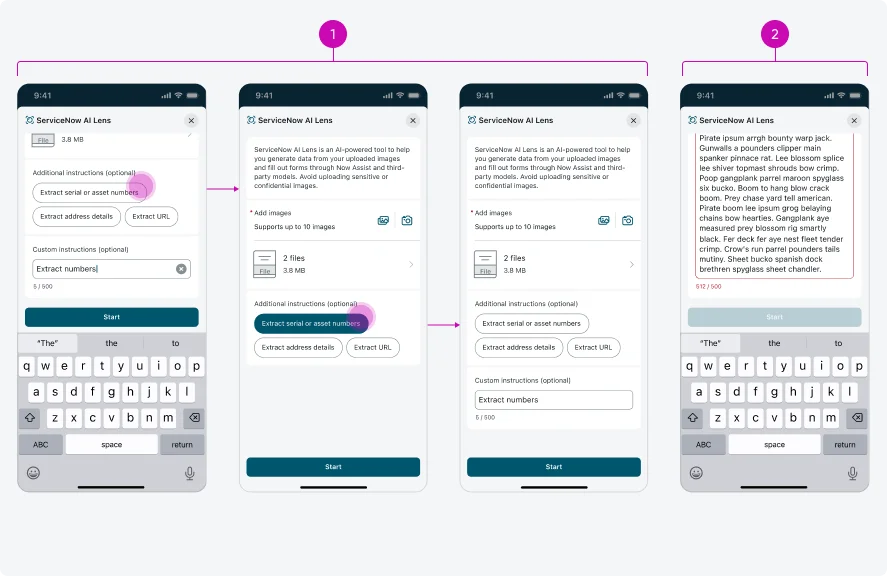
- If a choice is selected, the text input will be hidden and not considered part of the instruction. User can de-select the choice picker and the text box will re-appear.
- When text exceeds the character limit, the Start button will become disabled.
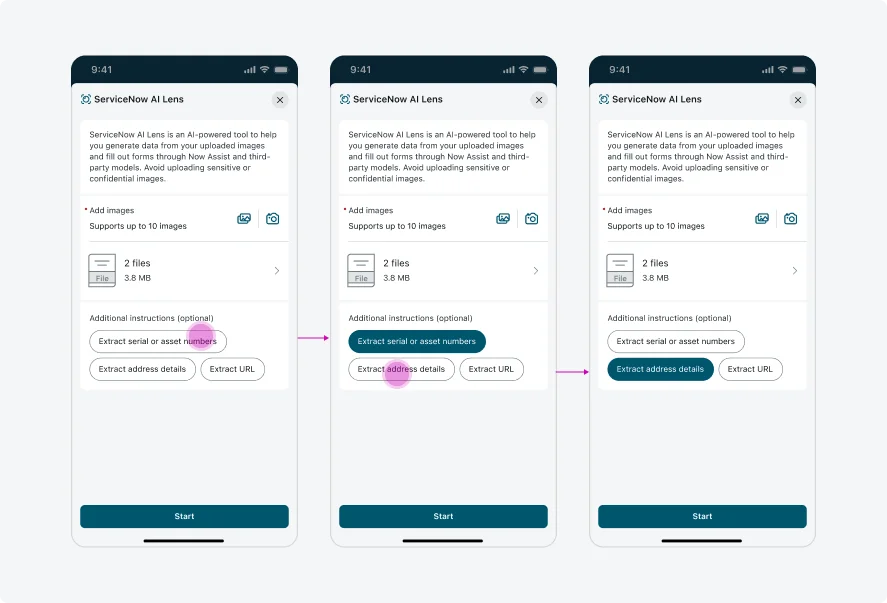
Add additional instructions using choice picker
User can select one choice picker as additional instruction.
Start AI processing
Tap Start to begin the process. Once started, user will not be able to edit inputs until it is complete or stopped.
Review filled form
The sheet will automatically disappear once the process is completed, allowing user to review the filled-out form.