


iOS

Android
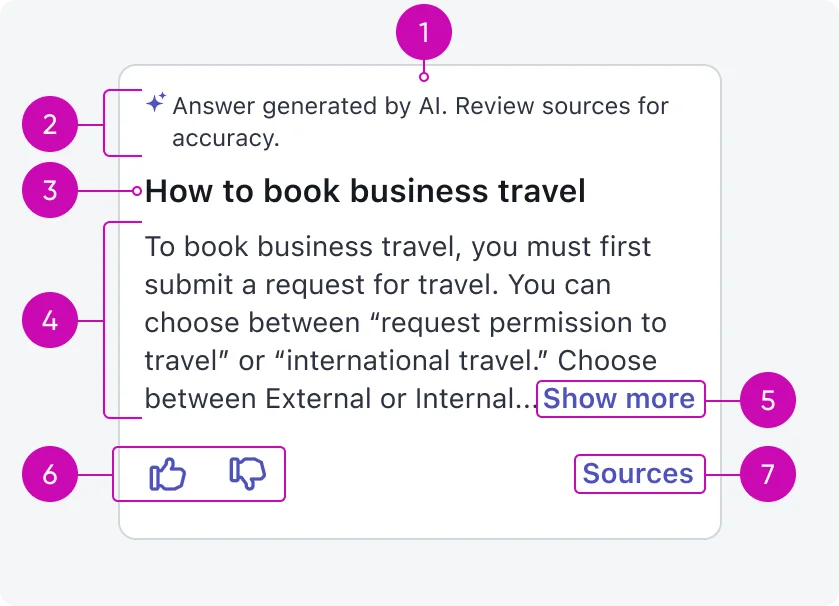
- Results card: The container for the genius result.
- Tagline: Text letting the user know this result was AI-generated and they need to check it for accuracy.
- Title: Title of up to 2 lines before truncation.
- Generated answer: The answer generated by the LLM, max of 6 lines then truncated.
- Show more button: Expands the card to display the entire generated answer.
- Feedback controls: Enables users to leave feedback through the thumbs up or thumbs down icons about the result.
- Sources button: A space to house relevant actions for the user to take.
Configurations
Otto genius results have predetermined layouts that show visuals, text, and data and are built to be customizable. You can edit them in either Mobile App Builder or Mobile Card Builder.
Design recommendations
Follow our card guidelines when customizing the Otto Genius Q&A Genius Result cards.
Alignment and positioning
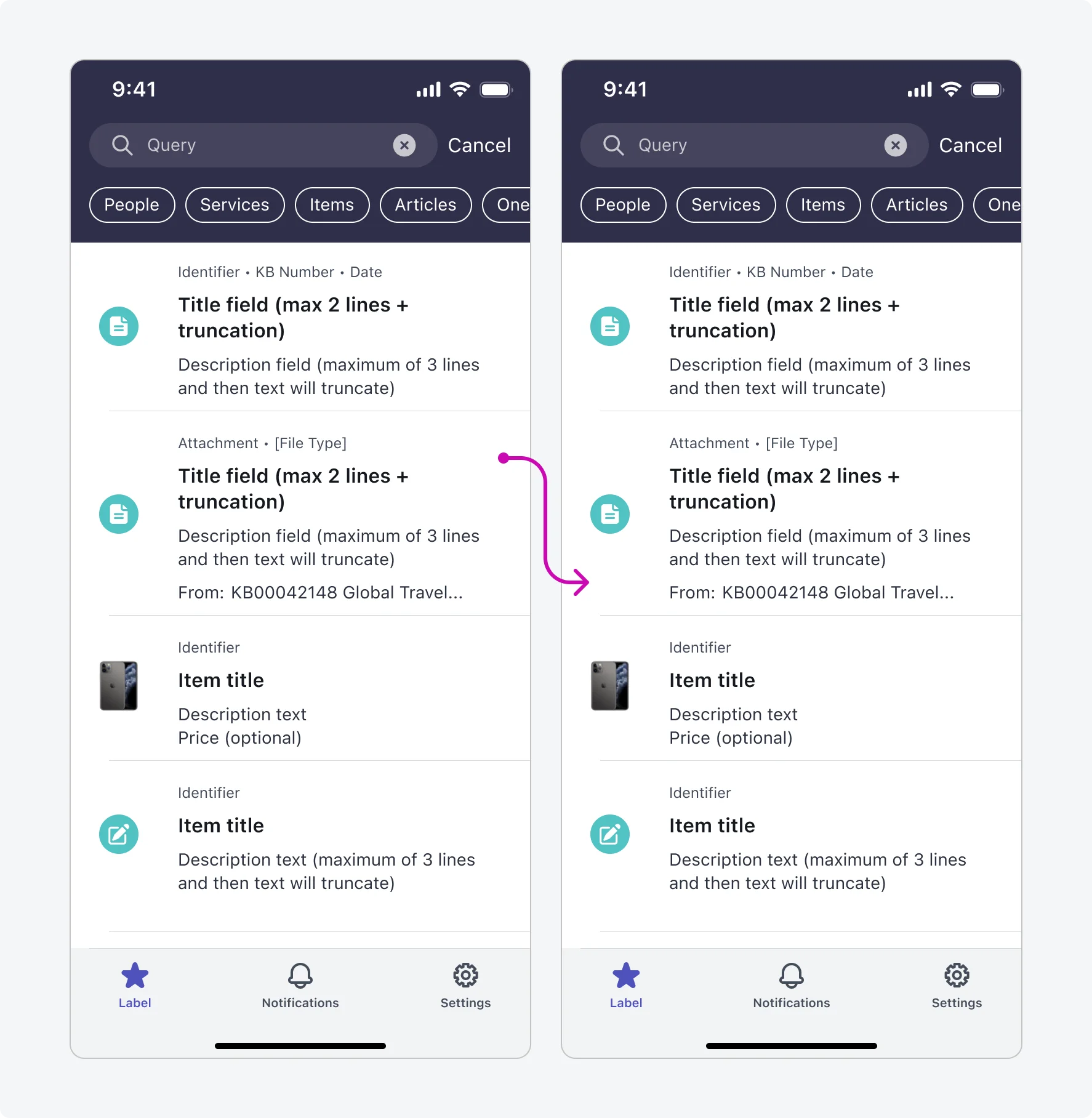
When available, Otto Q&A Genius Results are displayed as the first result on the search results screen.

States
Otto Q&A Genius Result has 3 states: default, loading, and expanded.
| State | Visual |
|---|---|
| Loading |  |
| Default | 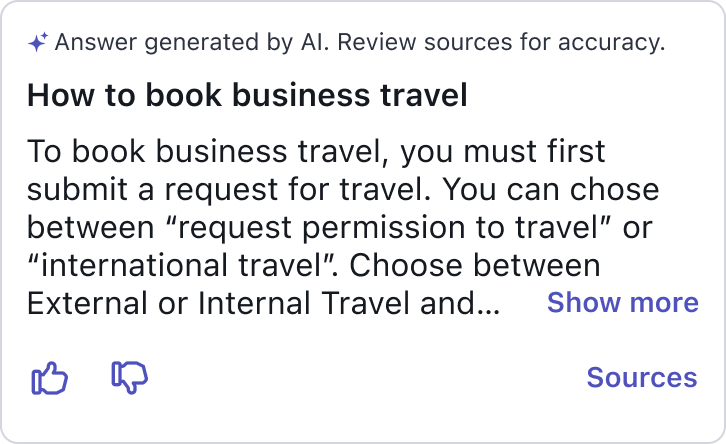 |
| Expanded | 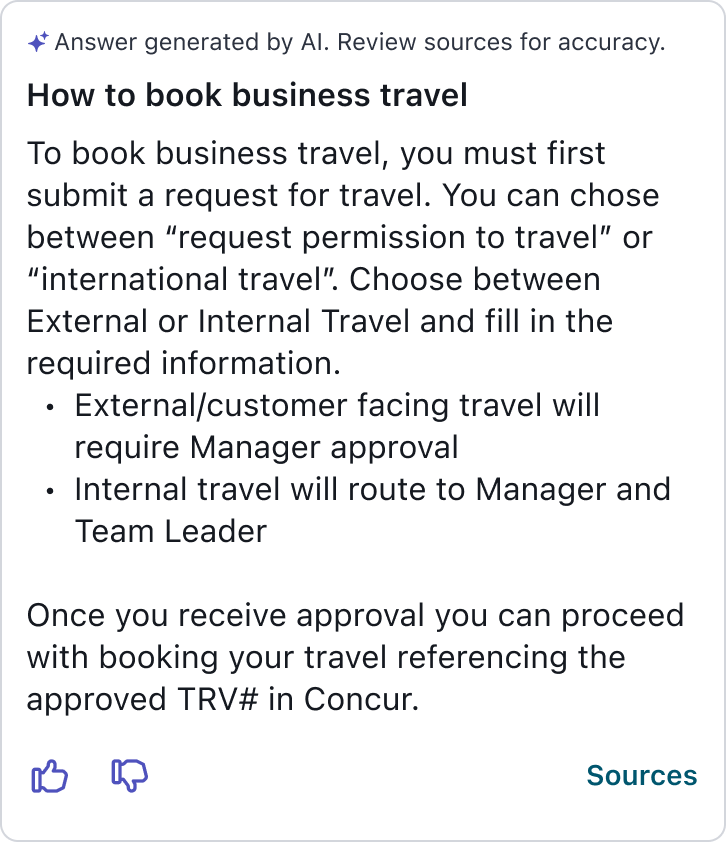 |
Interactions
Learn how Otto Q&A Genius Result responds when a user interacts with it.
Show more button
When a user taps the “show more” text button on the Otto Genius Result card, the card expands to display all of the generated answer.
Sources button
When a user taps the “sources” text button on the Otto Genius Result card, a native sheet appears with the list of sources the user can then click to navigate to that source.

Positive feedback control
When a user taps the “thumbs up” stateful button on the Otto Genius Result card, the button state changes to true and positive feedback is sent to the system.
Negative feedback control
When a user taps the “thumbs up” stateful button on the Otto Genius Result card, the button state changes to true and positive feedback is sent to the system.
