


iOS

Android
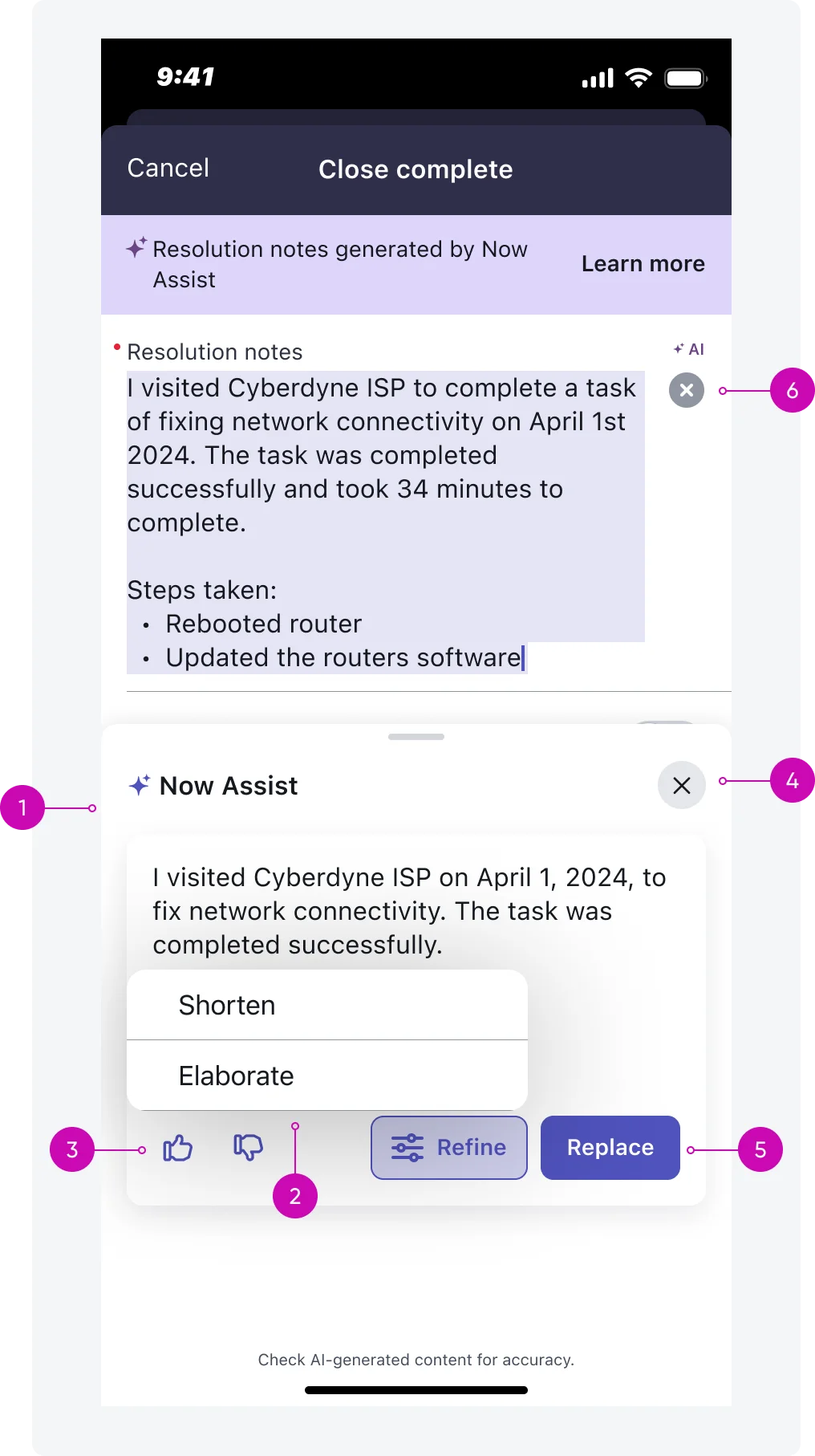
- Sheet: Slides in from bottom of screen when Write with Otto is triggered
- Refine menu: Refine options that are presented to the user when “Refine” button is tapped (BUs can configure their own refinement options - please reach out to our team if you have any questions on what is available or possible for your team).
- Feedback: Feedback mechanism that is fired as soon as the user taps an option
- Close: User can close the sheet but their generated responses will be lost
- Replace: Selecting this option will replace the highlighted text in the text input area with the generated response and close the sheet (all previously generated content will be lost once the sheet closes)
- Delete: This will delete the original or originally generated text in the main input area (user will see a confirmation message).
Variants
Write with Otto has 2 variants: the Generating state and the Static state.
Generating
Use the Generating state when you’ve just executed a refine option.

Static (ready for further refinement)
The Static state appears after refined text has been generated.

Configurations
Additional refine menu options
If you have several refine options (subcategories), you can use a nested menu. (Note - this example is not indicative of the refinement options available today)

Alignment and positioning
Left align all content except for the initial “refine” UI action for the Android experience.

Initial “refine” UI action is left aligned for iOS and center aligned for Android.
Interactions
Inline and Skeleton Loader
Use the skeleton loader when content is being generated by Otto.

1. Inline Loader: The inline loader shows the sparkle icons in a rotating animation as the text maintains a loading status. 2. Skeleton Loader: The animated skeleton loader has a subtle pulse animation and serves as a placeholder to indicate inbound text being generated.
Text Streaming Animations
Use the skeleton loader when content is being generated by Otto.

1. Streaming Animation: As the newly generated text is loading into the view, it will appear in a progressive display pattern where text appears simulating natural typing or response generation.